Introduction
The Redmineflux Helpdesk Plugin is a fully integrated support management system built on top of the Redmine project management system, designed to streamline customer communication, automate workflows, and improve response efficiency.
Version Compatibility
The Redmineflux Helpdesk Plugin is compatible with the following
Redmine Versions:
- 5.0.x, 5.1.x
- 6.0.x, 6.1.x
Installation
To install the Redmineflux Helpdesk Plugin, follow these steps:
- Make sure you have a working installation of Redmine.
- Unzip the archive and upload the
redmineflux_helpdeskfolder toRedmine/pluginsand do not change the folder name. - Run the following command to install the required dependencies:
bundle install - If this is a fresh Redmine installation with no data yet, load Redmine’s default data first (skip this step on an existing installation):
RAILS_ENV=production bundle exec rake redmine:load_default_data - Run the database migration.
Production:RAILS_ENV=production bundle exec rake redmine:plugins:migrate
Development:RAILS_ENV=development bundle exec rake redmine:plugins:migrate -
Redis is required to handle background jobs for the plugin (see Background Jobs below). Follow these steps to install and start Redis:
- On Ubuntu/Debian
sudo apt updatesudo apt install redis-serversudo service redis-server start - On macOS (using Homebrew)
brew install redisbrew services start redis
Note: Sidekiq is not officially supported on native Windows because it relies on Unix-based process features. We recommend running Redis and Sidekiq using WSL2 (Windows Subsystem for Linux) or Docker Desktop.
Using WSL2:- Enable WSL2 and install Ubuntu from the Microsoft Store.
- Open the Ubuntu terminal and run:
sudo apt update
sudo apt install redis-server
sudo service redis-server start - Verify Redis is running:
redis-cli ping
Expected output:PONG
docker run -d --name redis -p 6379:6379 redis - On Ubuntu/Debian
-
Start Sidekiq for background jobs. Sidekiq runs three scheduled jobs the plugin depends on: checking project mailboxes for new ticket emails (every 5 minutes), monitoring SLA deadlines and triggering escalations (every 2 minutes), and auto-closing inactive resolved tickets where that’s configured (every 2 minutes). None of these run without Sidekiq active. Start it with:
bundle exec sidekiqWindows users: Run this command from your WSL2 terminal or a Linux-based Docker container, not from the native Windows Command Prompt or PowerShell.
- Start the Rails server:
rails s
Upgrading an existing installation: replace the redmineflux_helpdesk folder with the new version, run bundle install, run RAILS_ENV=production bundle exec rake redmine:plugins:migrate again to apply any new migrations, then restart Redmine and Sidekiq.
Note:
If you encounter any UI-related issues after installing the plugin, such as missing styles or JavaScript functionality (for example, CSS or JavaScript files not loading properly), run the following command and then restart your Redmine server:
RAILS_ENV=production bundle exec rake assets:precompile
This command regenerates the plugin assets and helps ensure that all CSS and JavaScript files are loaded correctly.
Configuration
Step 1: Enable the REST API (recommended)
- Log in as an administrator.
- Navigate to the Administration tab from the top menu.
- Click Settings, open the API tab, and enable “Enable REST web service”.
Turning this on is standard practice for any Redmine instance that uses REST integrations, and the Helpdesk plugin’s own REST API is one of them — enable it before relying on API-based integrations.
Step 2: Enable the Helpdesk module in a project
- Navigate to the Projects tab on the top menu.
- Click on the project you want to enable Helpdesk for.
- Go to the project’s Settings tab.
- Open Modules, tick Helpdesk, and click Save.
Also tick Time tracking if agents on this project should be able to log time from the reply box, or if you plan to use Prepaid Support Hours — without it, time logging is unavailable and a prepaid budget has nothing to measure against. - A Helpdesk tab now appears in the project menu.
Step 3: Mandatory prerequisites
Two things must be in place before Helpdesk features — tickets, SLA, support levels — will work in a project.
Support Tracker (mandatory)
Every helpdesk ticket is created on a tracker named exactly “Support” — this name is fixed and cannot be changed in settings.
- If a tracker named Support does not already exist, create it once, instance-wide, at Administration → Trackers → New Tracker.
- Then, on each Helpdesk-enabled project: go to Project Settings → Trackers and tick Support.
Helpdesk tickets can only be created on the Support tracker — this is what the plugin uses to tell a support ticket apart from ordinary issues for filtering, reporting, and SLA tracking.
Email Configuration
Each project configures its own incoming email, outgoing email, and ticket settings, from Helpdesk Command Center → Settings → Email Configuration, selecting the project. This lets a project receive customer emails as tickets and reply from its own support address.
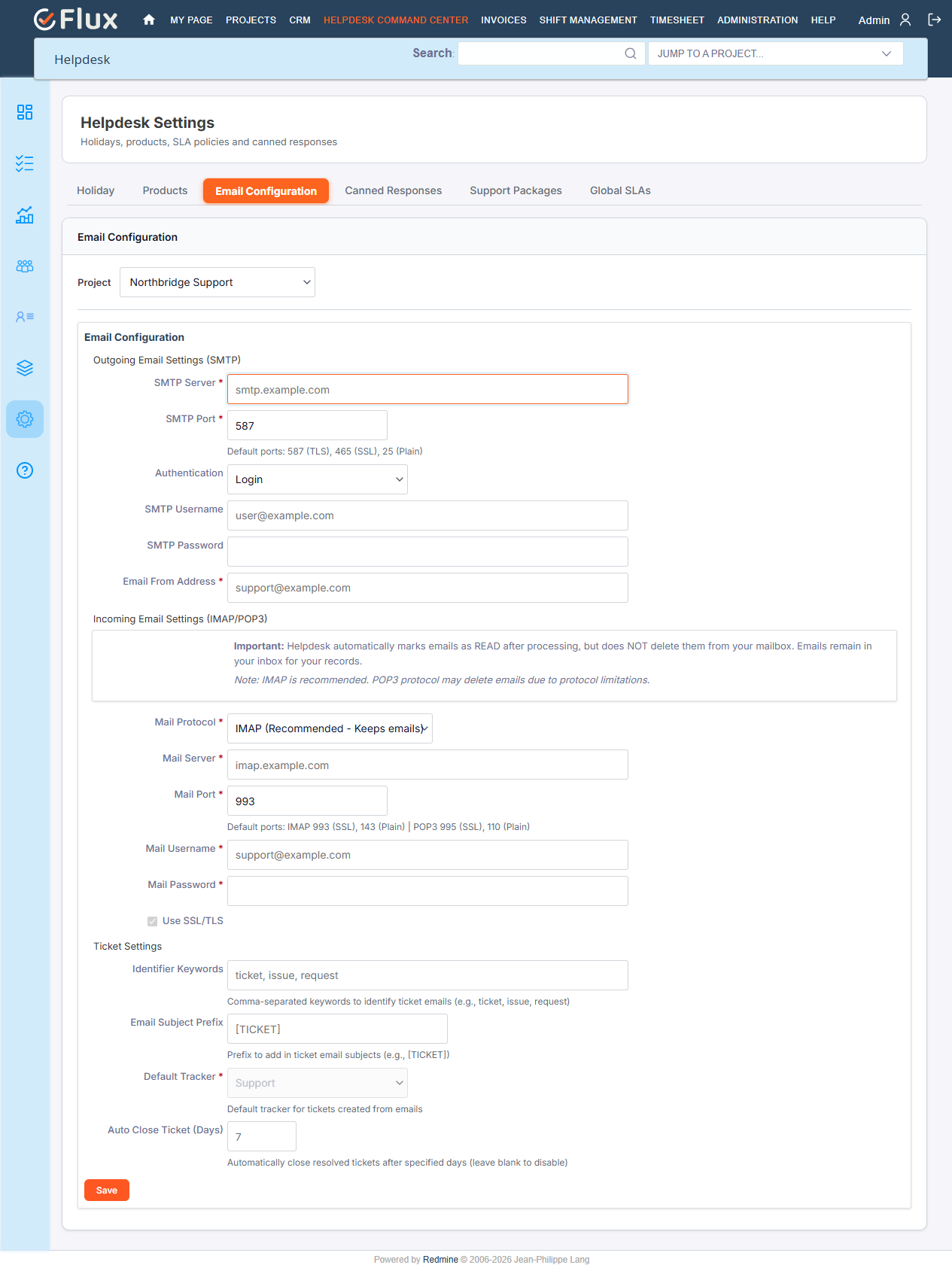
The Email Configuration form has three sections:
1. Outgoing Email Settings (SMTP) — used for replies, notifications, and acknowledgment emails.
- SMTP Server — mail server hostname
- SMTP Port — default 587
- Authentication — None, Plain, Login, or CRAM-MD5
- SMTP Username
- SMTP Password
- Email From Address — sender address for all helpdesk emails from this project
2. Incoming Email Settings — used to receive customer emails and convert them into tickets.
- Mail Protocol — IMAP (Recommended) or POP3
- Mail Server — incoming mail server hostname
- Mail Port — default 993 (IMAP SSL)
- Mail Username / Mail Password
Note: mail is always polled over a secure (SSL/TLS) connection — this is fixed and not a separate toggle. IMAP is recommended over POP3 because messages remain in the mailbox instead of being removed after retrieval.
3. Ticket Settings — defines how emails are converted into tickets.
- Identifier Keywords — if set, an inbound email’s subject or body must contain one of these keywords to be converted into a ticket
- Email Subject Prefix — prepended to the ticket’s email subject (e.g. “Email ticket -“)
- Default Tracker — shown for reference; tickets created from email always use the Support tracker
- Auto Close Ticket (Days) — a Resolved ticket with no further activity for this many days is closed automatically by the background worker. Leave blank to disable.
Once saved: the project mailbox automatically converts incoming emails into tickets, agents can reply directly from Redmine, acknowledgment emails are sent correctly, and the auto-close rule (if set) applies.
How to View Helpdesk
To access the Helpdesk for a specific project, open that project and click the Helpdesk tab to reach the project’s own Helpdesk dashboard.
Helpdesk Command Center (the global view)
The cross-project view is labeled “Helpdesk Command Center” in the top menu, and is visible only to administrators and to accounts holding manage_helpdesk at the instance-wide level. A registered helpdesk customer sees the same menu position labeled “My Helpdesk” instead, opening their own portal (see Customer Portal). Any other logged-in account does not see this menu item at all.
- From the Command Center, administrators and managers can see every helpdesk ticket, across every project, from a single centralized dashboard, ticket list, and set of reports.
Helpdesk Dashboard
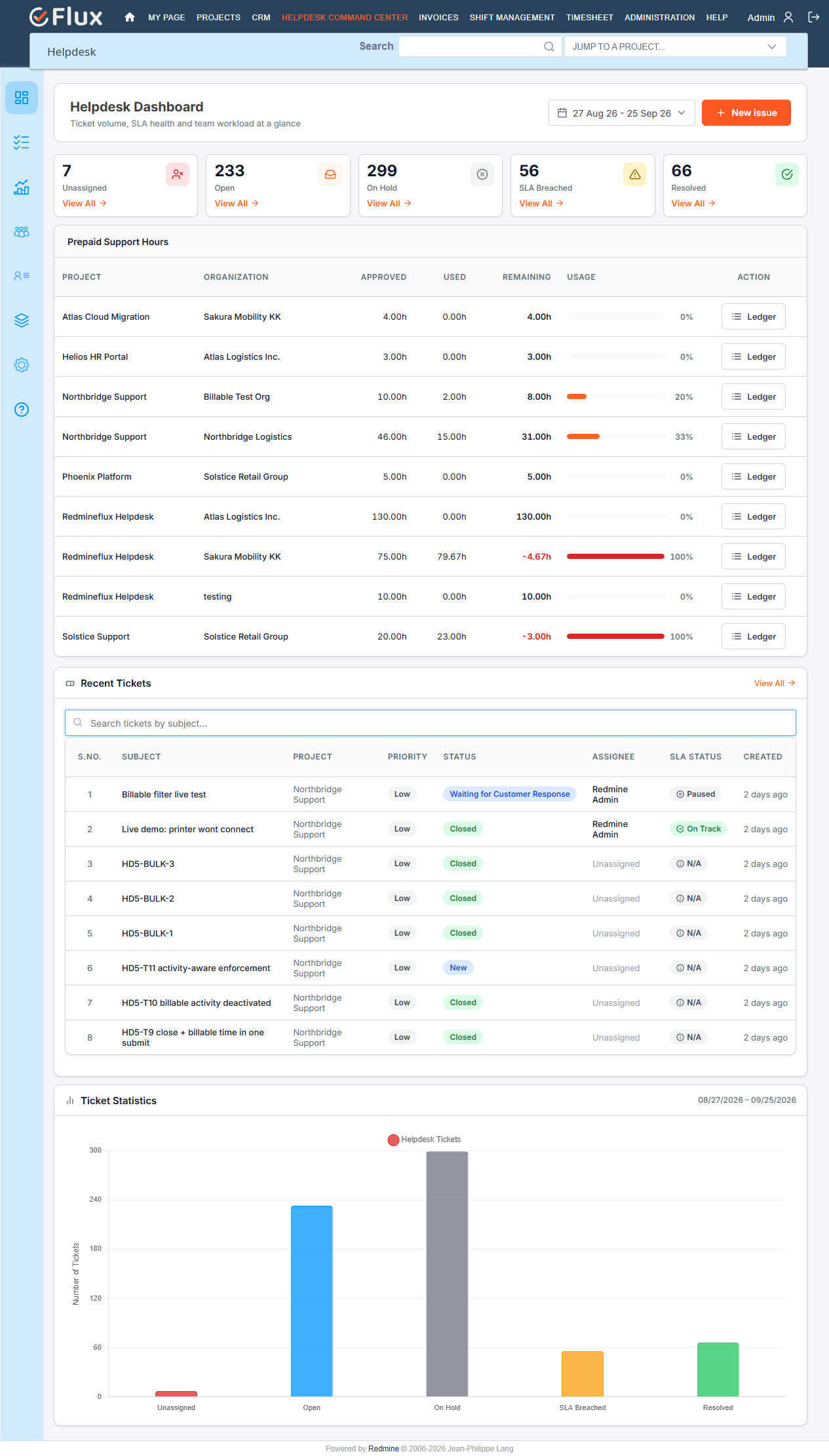
Shows the overall status of tickets for the current month by default. You can filter by a custom date range and create a new ticket directly from the dashboard.
- Go to the top menu and click Helpdesk Command Center to open the global view (or open a project’s own Helpdesk tab for that project’s dashboard only).
- The dashboard shows five KPI cards: Unassigned, Open, On Hold, SLA Breached, and Resolved, each a click-through to that filtered ticket list.
- The Prepaid Support Hours table beneath the cards shows every organization’s budget at a glance.
- Use the Date Range picker at the top-right to view any custom date range.
- Click New issue to create a helpdesk ticket directly from the dashboard.
Helpdesk Tickets
Everything to do with working a ticket day to day — creating one, replying, keeping the customer updated, and handling email and duplicates.
How to Create a Helpdesk Ticket
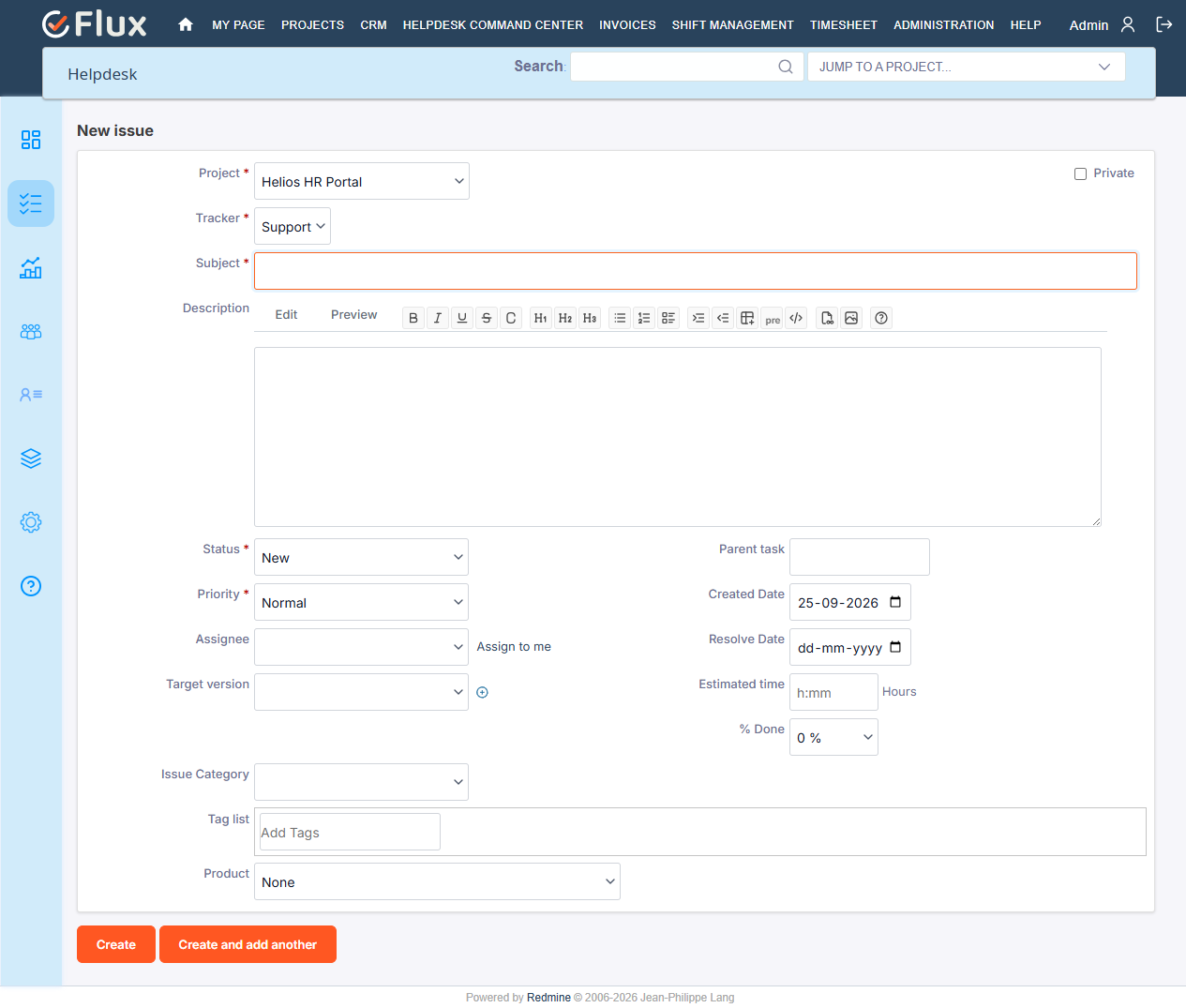
Lets you manually create a new support ticket with a subject, description, priority, and product. A ticket can also be assigned directly to an agent at creation time by anyone with edit access.
- Go to the top menu and click Helpdesk Command Center (or open a project’s own Helpdesk tab to create a ticket in that project specifically).
- In the left sidebar, click Helpdesk Tickets — this shows the ticket list across every helpdesk-enabled project.
- Click the New issue button.
- Choose the Project the ticket belongs to. The Tracker is fixed to Support.
- Fill in Subject, Description, Status, and Priority.
- Select a Product, if the project uses products to classify tickets.
- (Optional) Set Assignee, Issue Category, and attach files or screenshots.
- Click Create (or Create and add another to immediately start another).
How to Add an Internal Note to a Ticket
Internal notes are private comments visible only to agents holding the View private notes permission. Customers never see them, and never see the option to create one — it’s used for team discussion, escalation reasoning, or handover notes without exposing that to the customer.
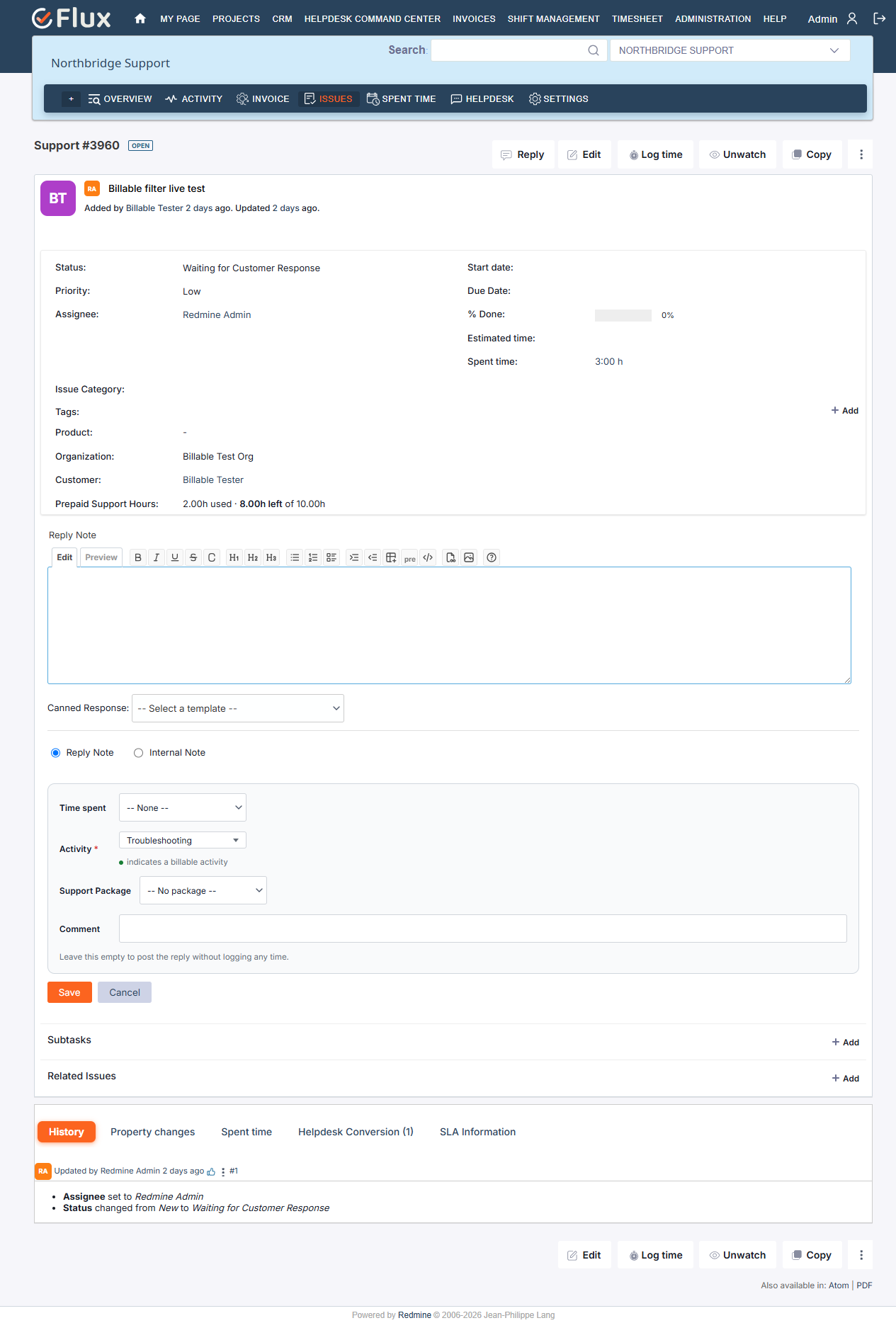
- Open the helpdesk ticket and click Reply.
- Write your note in the text area.
- Two options are shown as radio buttons: Reply Note (selected by default — this is what emails the customer) and Internal Note. Select Internal Note.
- Click Save.
The Internal Note option is offered only to agents who hold Redmine’s core Set private notes permission on the project — an agent without it sees only the Reply Note option, matching what they’re actually allowed to save.
Key behaviours:
- Internal notes are not visible to customers, in the ticket conversation or by email.
- Only agents holding the core View private notes permission can read internal notes.
- Adding an internal note does not count as a customer-facing reply — status and SLA pause/resume are unaffected.
- To reply to the customer and resume the SLA clock, select Reply Note instead.
How to Send Notes to Customers
- Open the helpdesk ticket and click Reply.
- Keep Reply Note selected (this is the default).
- Write your response in the reply editor.
- Click Save.
The note is saved to the ticket conversation, and the customer is notified by email.
How to Use Canned Responses
Canned responses are quick pre-written reply templates used by support agents, so common answers don’t need to be typed out every time — see How to Create Canned Responses under Helpdesk Settings for how the templates themselves are built. Using one while replying to a ticket:
- Open the ticket and click Reply.
- Below the reply text area, locate the Canned Response dropdown.
- Select the template you want.
- Its content is inserted into the reply box, with every placeholder already replaced by its real value.
- Edit the inserted text if needed, then click Save to send the reply.
The reply is saved to the ticket’s conversation, and an email is sent to the customer automatically.
Waiting for Customer Status
The Waiting for Customer Response status automatically pauses the SLA clock when an agent replies, and resumes it when the customer replies — so the SLA timer only ever measures time your team actually owed a response, not time waiting on the customer.
When an agent replies (using the ticket’s Reply button, with Reply Note selected): the status changes to Waiting for Customer Response, and the SLA clock pauses. This is specific to the plugin’s own Reply button — an ordinary Redmine note added on the Edit form does not trigger it.
When the customer replies (via the customer portal, the Reply button, or by replying to the notification email): the status reverts to In Progress and the SLA clock resumes.
When a customer replies to a Resolved or Closed ticket (via the plugin’s own reply flow): the ticket is automatically reopened and its SLA is reactivated.
| Scenario | Ticket Status | SLA Clock |
|---|---|---|
| Agent submits a reply | Waiting for Customer Response | Paused |
| Customer replies | In Progress | Resumed |
| Ticket unassigned | — | Paused |
| Ticket reassigned (was paused because it had no assignee) | — | Resumed |
| Ticket reassigned while Waiting for Customer | — | Stays paused |
| Customer replies to a closed ticket | Reopened | Reactivated |
Note: Internal notes never trigger the Waiting for Customer status — only a Reply Note does. Reassigning a ticket only resumes its SLA clock if the pause was caused by the ticket having no assignee; a pause caused by waiting on the customer is left alone until the customer actually replies.
SLA Reminders & Escalation Notifications
The Helpdesk plugin includes an automatic SLA monitoring and escalation system that runs in the background via Sidekiq, checking active tickets for SLA breaches every two minutes and triggering escalations without any manual intervention. Closed and resolved tickets are excluded.
See How Support Level Escalation Works, under Helpdesk SLA below, for the exact escalation paths. The escalation email sent to a new assignee includes the ticket ID and subject, project name, current status, previous and new support level, which deadline was breached, the ticket’s total escalation count, and a direct link to the ticket. Every escalation is also recorded on the ticket’s own SLA Information panel, under Activity Log, for full traceability.
Ticket Management
How to Create a Ticket from Email
For registered customers:
- The customer must be registered as a helpdesk customer and linked to the project.
- The customer emails the project’s configured helpdesk address.
- If Identifier Keywords are configured for the project, the subject or body must contain one; if none are configured, this check is skipped.
- A ticket is created automatically, with the configured Email Subject Prefix added to its subject.
- The customer receives a confirmation email.
For unregistered senders: the sender receives an automatic reply — “You have not registered on our Redmineflux platform. Please register yourself first.” — and no ticket is created.
How to Reply to a Ticket via Email
- The customer receives a ticket notification email.
- They reply directly to that email.
- The reply is added to the ticket as a public note, threaded into the conversation.
- The reply also appears on the ticket’s Helpdesk Conversion tab, alongside every other inbound and outbound message for that ticket — separately from the regular Notes tab.
How to View Ticket Email History
- Open any helpdesk ticket.
- Click the Helpdesk Conversion tab.
- You’ll see every incoming and outgoing email for this ticket, with sender/recipient addresses, subject and content, and timestamps.
Note: viewing this tab requires the view_email_history permission, granted separately from general ticket access so it can be withheld without hiding the ticket itself.
Handling Duplicate Tickets
When the same issue is reported more than once — for example, a customer emails a follow-up and separately also submits a new ticket through the portal — there is no self-service Merge button inside the web app. That’s by design: a merge moves every journal entry, email-history record, and attachment from the duplicate onto a target ticket, links the two with a duplicates relation, and closes the duplicate — a destructive, hard-to-undo change, so it’s exposed only through the REST API (POST /helpdesk/api/v1/tickets/:id/merge, requires manage_helpdesk or edit_issues), for an admin scripting a cleanup or an integration acting with explicit confirmation.
From inside the app, the practical fallback is manual: close the newer ticket and leave a note on the one that stays open, pointing to it.
Knowledgebase
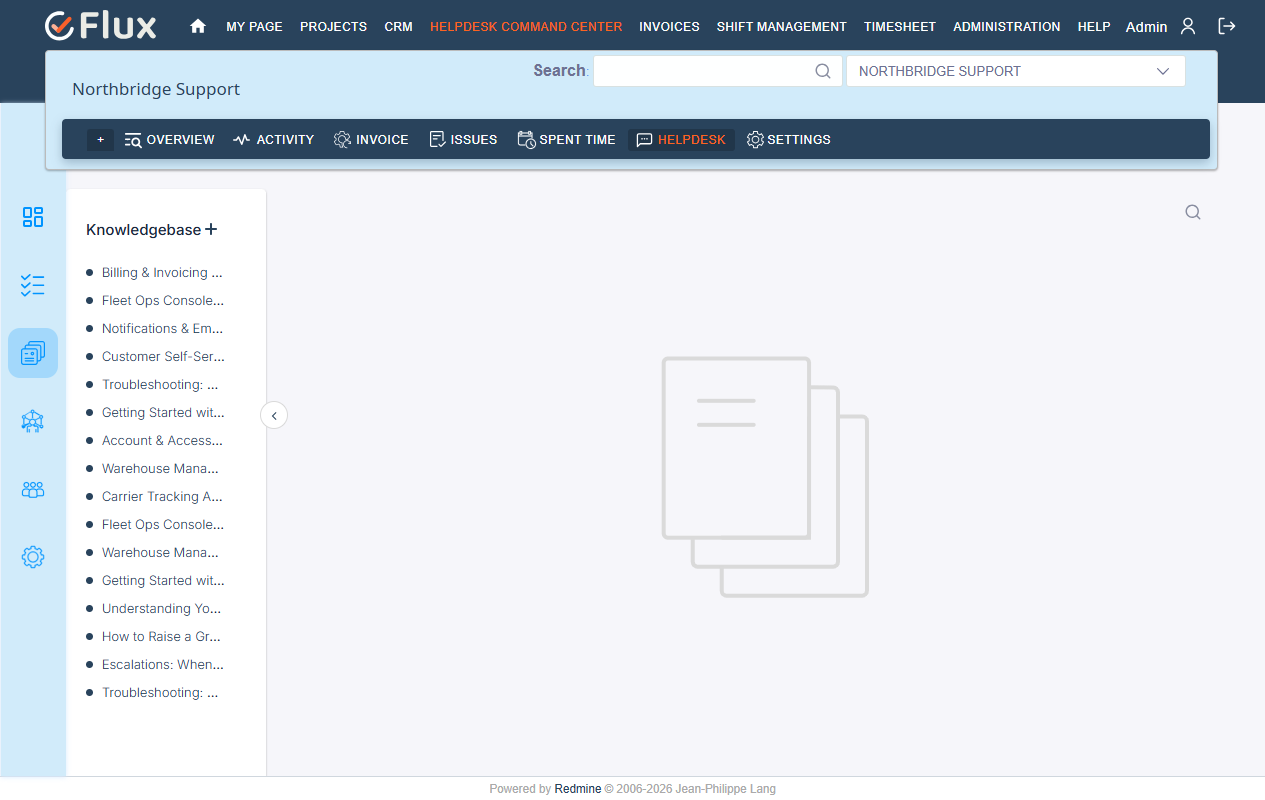
The Knowledgebase is a built-in documentation and self-service portal within the Helpdesk. Support teams can create structured articles to document solutions, FAQs, and guides, with rich text formatting, file attachments, version history, and public share links. It’s accessible from a project’s Helpdesk tab, under Knowledgebase in the left sidebar.
How to Create a Knowledgebase Article
- Navigate to your project and click the Helpdesk tab, then Knowledgebase in the sidebar.
- Click the + (Add Article) button at the top of the article tree.
- Enter the Article Title (required, up to 150 characters) and click Save — the article opens in the editor.
- Write the content using the rich text editor (headings, lists, code blocks, tables, quotes, images, and file attachments are all supported).
- Click Save to keep it unpublished for now, or Publish to make it live.
An article is a draft simply until it has been published at least once — staff can see it either way, but a customer never sees an article that hasn’t been published yet, regardless of how it’s shared.
Other Knowledgebase Actions
| Nest an article | Use the options menu on the parent article to add a child article directly, building a tree |
| Search | Type into the search box above the article tree — results update in real time across every article’s title and content |
| Share | Open the article and click the Share icon — the public URL is copied to your clipboard automatically, no login required for the recipient |
| Export to PDF | Open the article and click the Export icon |
| Version history | Open the options menu and select Page History to see every version, with the option to Restore an older one |
| Attachments | Open the Attachments tab to see every uploaded file with its uploader and date, download it, or delete it |
Knowledgebase Permissions
| Permission | Who has it |
|---|---|
| View articles | Any agent with view_helpdesk |
| Create articles | Agents with add_kb_page |
| Edit articles | Agents with edit_kb_page |
| Delete articles & attachments | Agents with delete_kb_page |
Helpdesk SLA
An SLA (Service Level Agreement) is configured per project and defines response time, resolution time, working hours, holidays, and — indirectly, via Support Levels — escalation. It’s what the system uses to track deadlines and trigger automatic escalations.
How to Create a Helpdesk SLA
- Go to the Project menu and open the project you want to configure the SLA for.
- In the left sidebar, click the Helpdesk SLA tab.
- Click the New SLA button.
- Fill in the SLA details:
- SLA Name
- Description
- First Response Time — a number plus a unit (minutes or hours)
- Resolution Time — a number plus a unit (minutes, hours, or days)
- Working Hours — a start time and an end time, both in UTC
- Working Days — a checkbox per day, Monday through Sunday
- Holidays — select any holidays this SLA should skip. See How to Create a Holiday under Helpdesk Settings.
- Active checkbox
- (Optional) Attach an SLA Agreement document.
- Click Save.
From the SLA list you can edit an SLA’s configuration, view its change history, or delete it (an SLA still linked to a customer or ticket cannot be deleted — deactivate it instead).
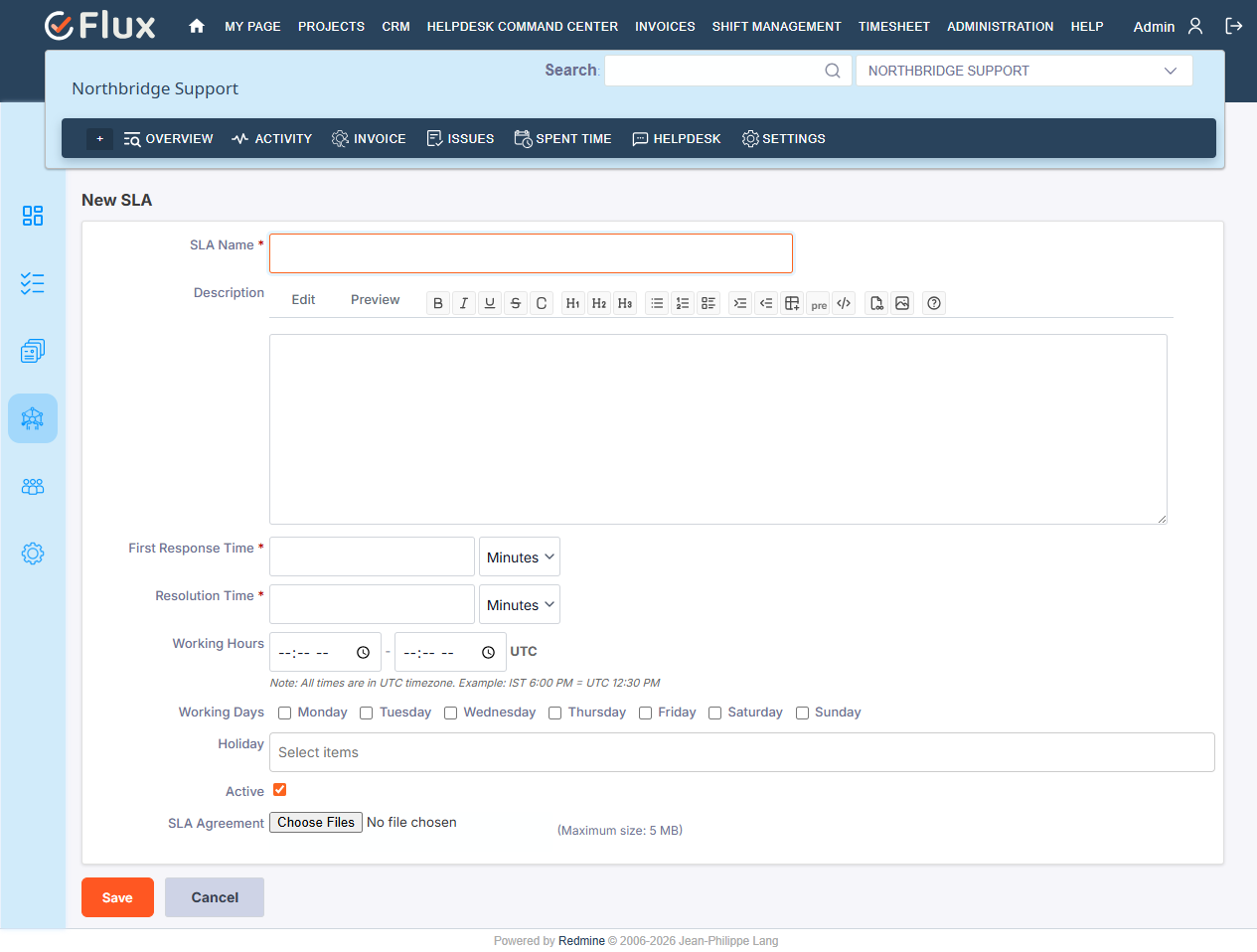
Note: All times are stored and displayed in UTC. Example: IST 6:00 PM = UTC 12:30 PM.
How to Create a Support Level
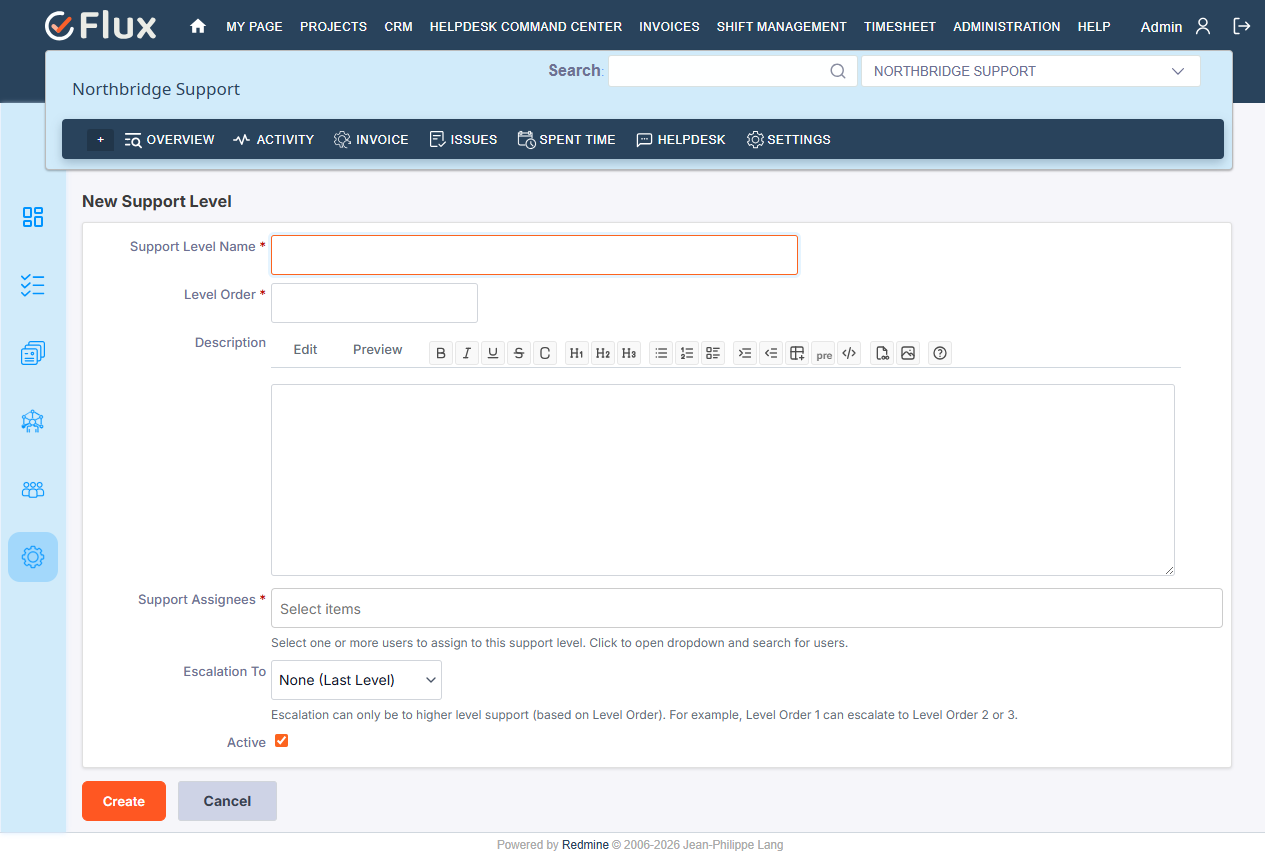
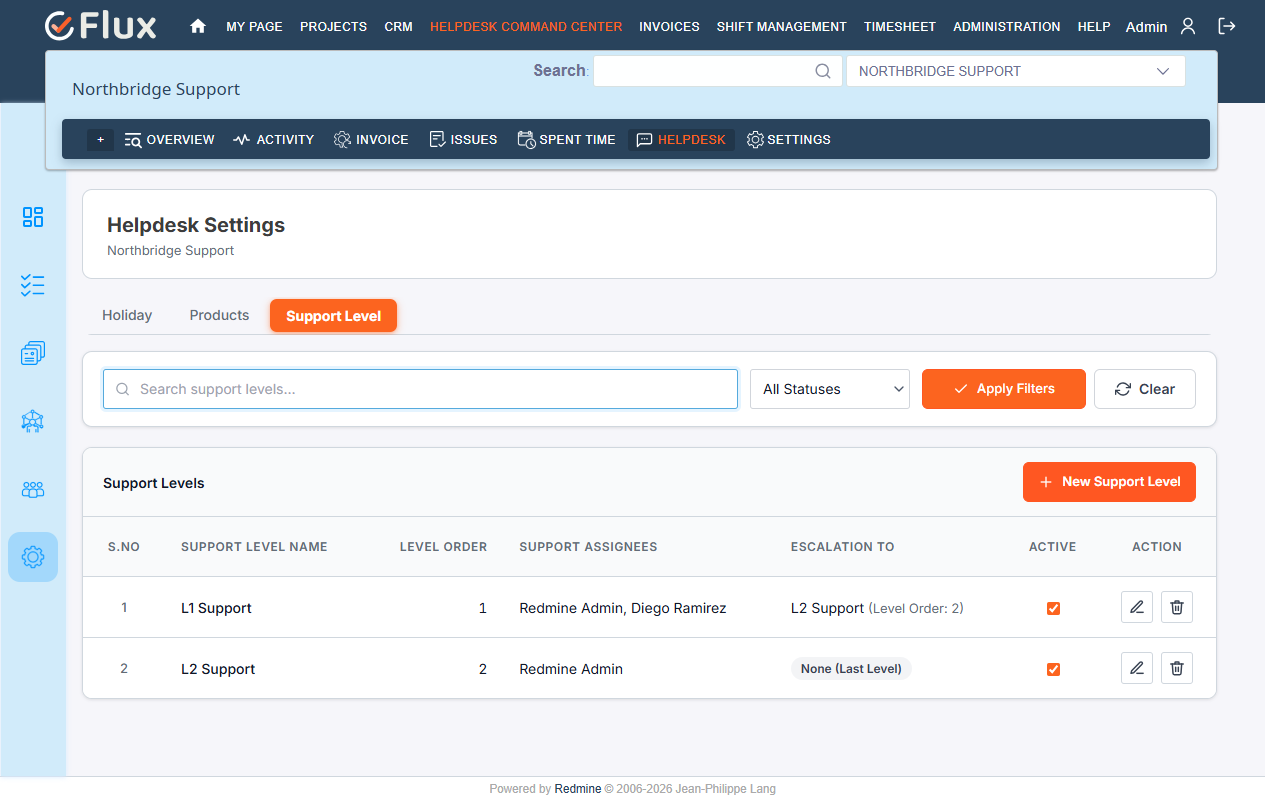
Support Levels are configured per project to define multi-tier ticket handling (L1, L2, L3, and so on) and the automatic escalation path between them.
- Go to the Project menu and open the project you want to configure support levels for.
- In the left sidebar, click the Support Level tab.
- Click the New Support Level button.
- Fill in the details:
- Name
- Level Order — its position in the tier (lower numbers are checked first)
- Description
- Support Assignees — at least one agent is required
- Escalation To — None (Last Level), or a higher-order level in the same project
- Active checkbox
- Click Save.
How Support Level Escalation Works
- New ticket: a ticket is created by a customer or via email, and starts in Redmine’s normal default status (e.g. New) with no support level yet.
- First assignment: the moment the ticket gets its first assignee — including automatically, via the Reply button — the plugin derives the ticket’s Support Level from the customer’s own project access record (or the project’s default level, for tickets raised by staff). SLA timers start at this same moment.
- Escalation (automatic, background job): a scheduled job checks active tickets against their SLA deadlines every two minutes — both the first-response deadline and, once a first response has been given, the resolution deadline. If either is missed:
- If the current level has an Escalation To level configured, the ticket is reassigned to the first available agent at that level, its deadlines are recalculated, and an escalation email is sent to the new assignee.
- If the current level has no further escalation target (the last tier), the ticket is instead reassigned to the instance’s administrator account, and a Critical SLA Breach Alert email is sent to that administrator. Manual intervention is required at that point.
How to View the SLA Information Panel on a Ticket
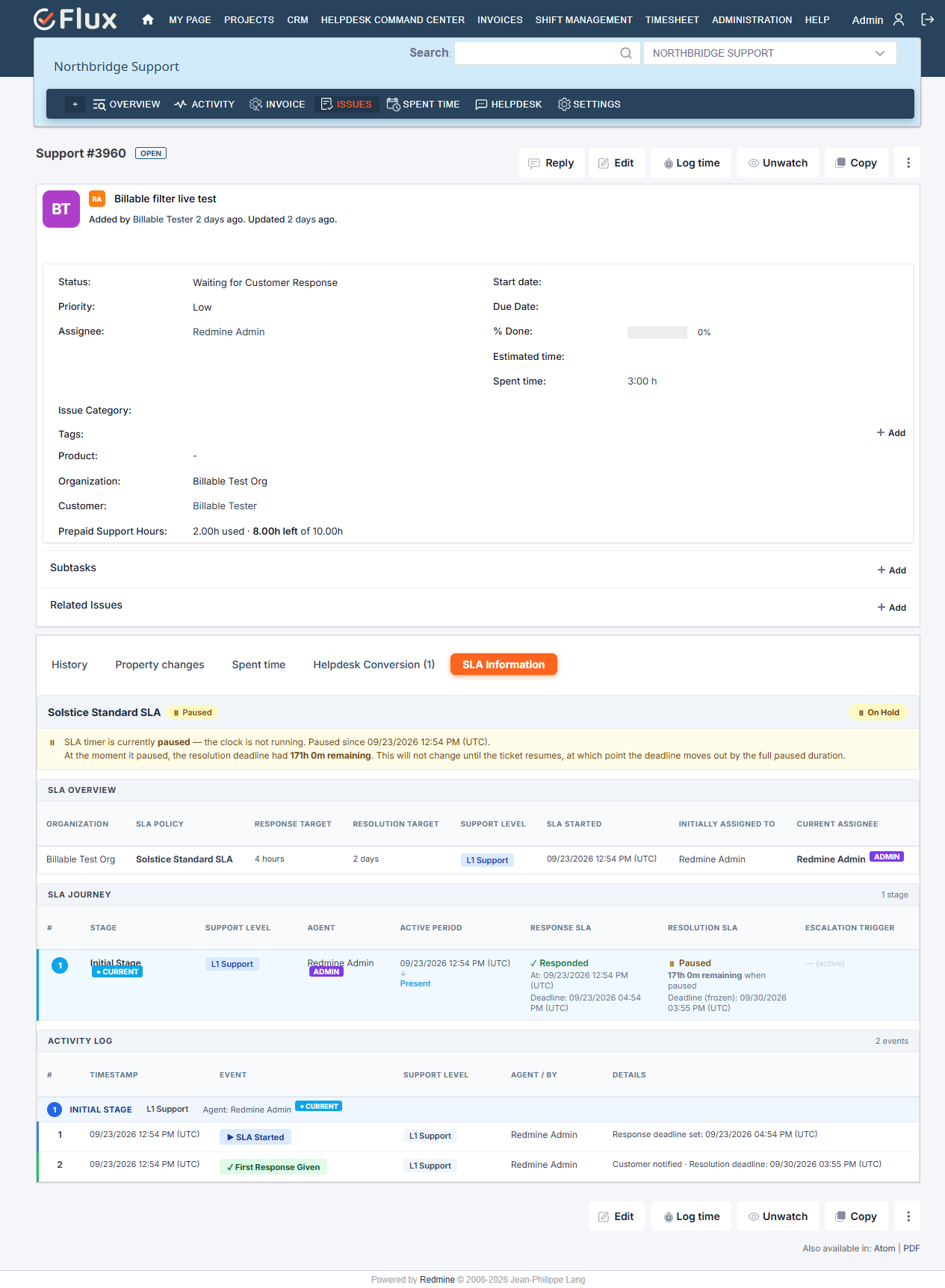
Every helpdesk ticket has a dedicated SLA Information panel on the issue detail page, showing the full SLA lifecycle of that ticket.
Fields shown: Organization, SLA Policy, Support Level, SLA Started, Response Target, Resolution Target, Initially Assigned To, and Current Assignee.
SLA health badge (color-coded):
| Badge | Meaning |
|---|---|
| No SLA | No SLA is assigned to this ticket |
| On Track | Deadlines are within limits |
| At Risk | A deadline is approaching |
| Critical | A deadline is very close or just missed |
| On Hold | The SLA timer is currently paused |
| SLA Missed | A deadline has been breached |
| Completed | The ticket has been resolved |
The panel also includes an SLA Journey table (each support-level stage, with agent, active period, and response/resolution status) and an Activity Log — a chronological timeline of every SLA event on the ticket.
How to View SLA History
The SLA History page is a complete audit trail of changes to an SLA’s own configuration — not a ticket’s history — showing who changed it, when, and what was modified.
- Go to the Project menu and open the target project.
- In the left sidebar, click the Helpdesk SLA tab.
- Click on an SLA to open its detail page, then click History.
Each entry shows a Create, Update, or Delete badge, the user who made the change, a timestamp, and — for updates — a field-level diff of old versus new values.
Helpdesk Reports
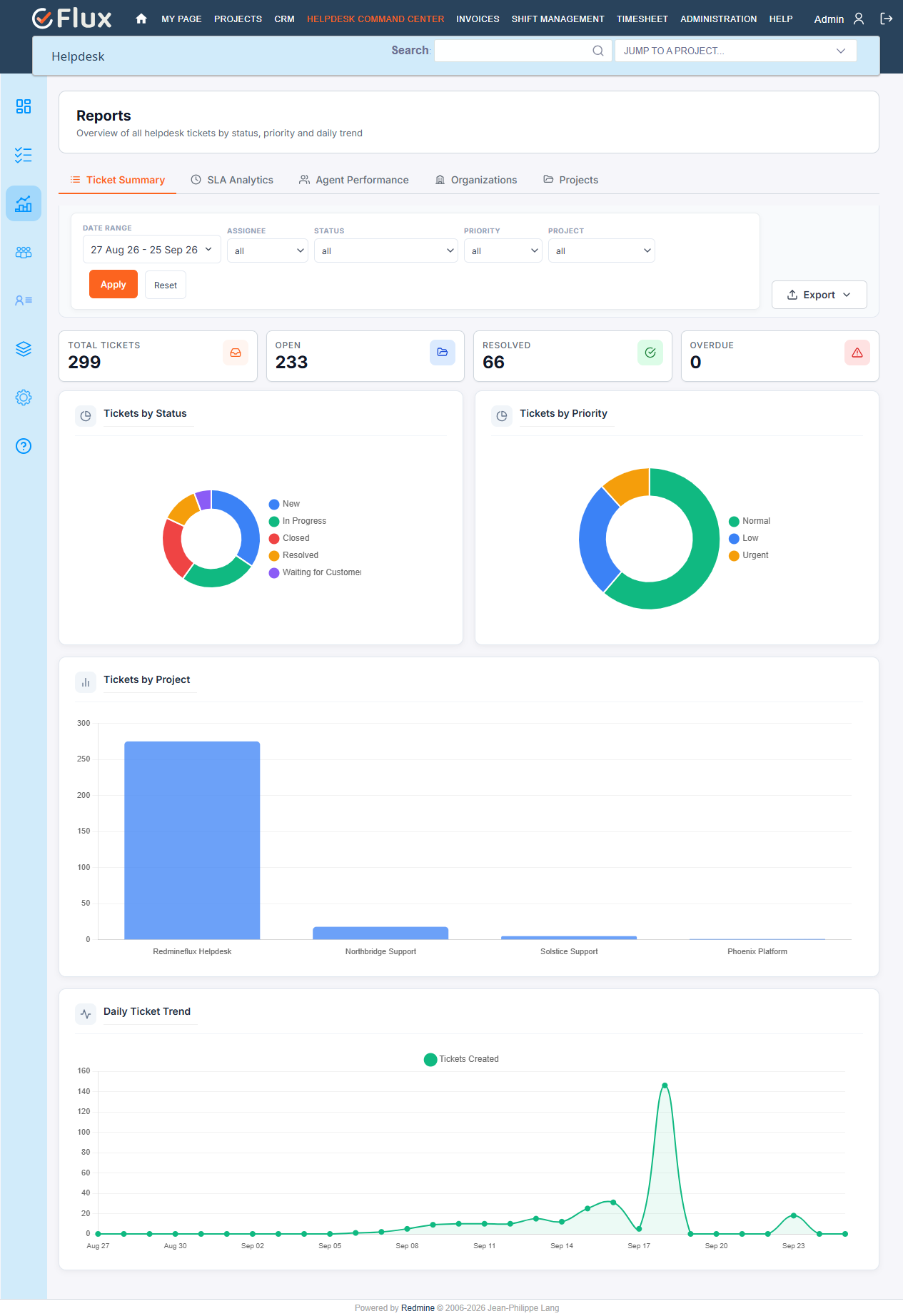
The Helpdesk Reports section gives support managers and admins a data-driven view of team performance, SLA compliance, and ticket activity, reachable from the Helpdesk Command Center.
- Go to the top menu and click Helpdesk Command Center.
- In the left sidebar, click Reports.
- Use the tab navigation to switch between the five report types.
- Use the Date From / To filter and any additional filters, then click Apply.
Report types:
- SLA Analytics — overall compliance/breach rate, first-response and resolution SLA percentages, breach breakdown by priority, project and support package, a weekly compliance trend, and a list of breached tickets.
- Agent Performance — per-agent ticket distribution, resolved/open counts, average response and resolution time, breach rate, escalation count, and workload comparison.
- Ticket Summary — total/open/closed/overdue counts, breakdown by status, priority, and project, and a daily volume trend.
- Organizations — ticket activity grouped by customer organization.
- Projects — SLA performance and ticket volume per project.
All five reports can be exported as CSV, Excel, or PDF using the Export button.
Note: Reports are visible only to administrators, or accounts holding the global manage_helpdesk or export_helpdesk_reports permission.
Organization
How to Create an Organization
Organizations represent the companies you support. The same organization can be linked to customers across multiple projects, and holds that customer’s prepaid support hours budget where one is configured.
- Go to the top menu and click Helpdesk Command Center.
- In the left sidebar, click Organization.
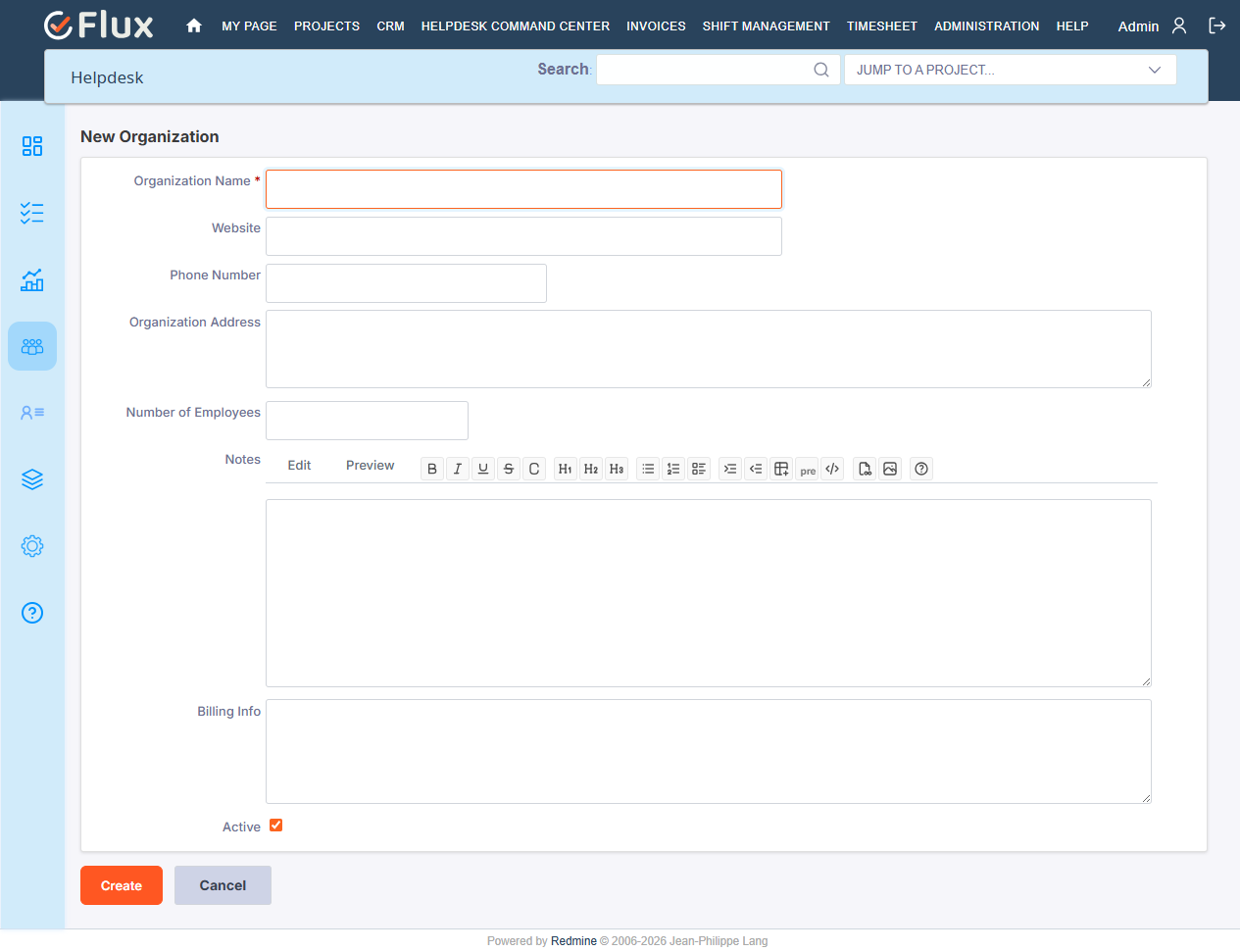
- Click the New Organization button.
- Fill in the organization’s details — Name (required), and optionally Website, Phone Number, Address, Number of Employees, Notes, and Billing Info.
- Click Save.
The new organization appears in the organization list, where you can edit its details, deactivate it, or open its Prepaid Support Hours tab.
Prepaid Support Hours
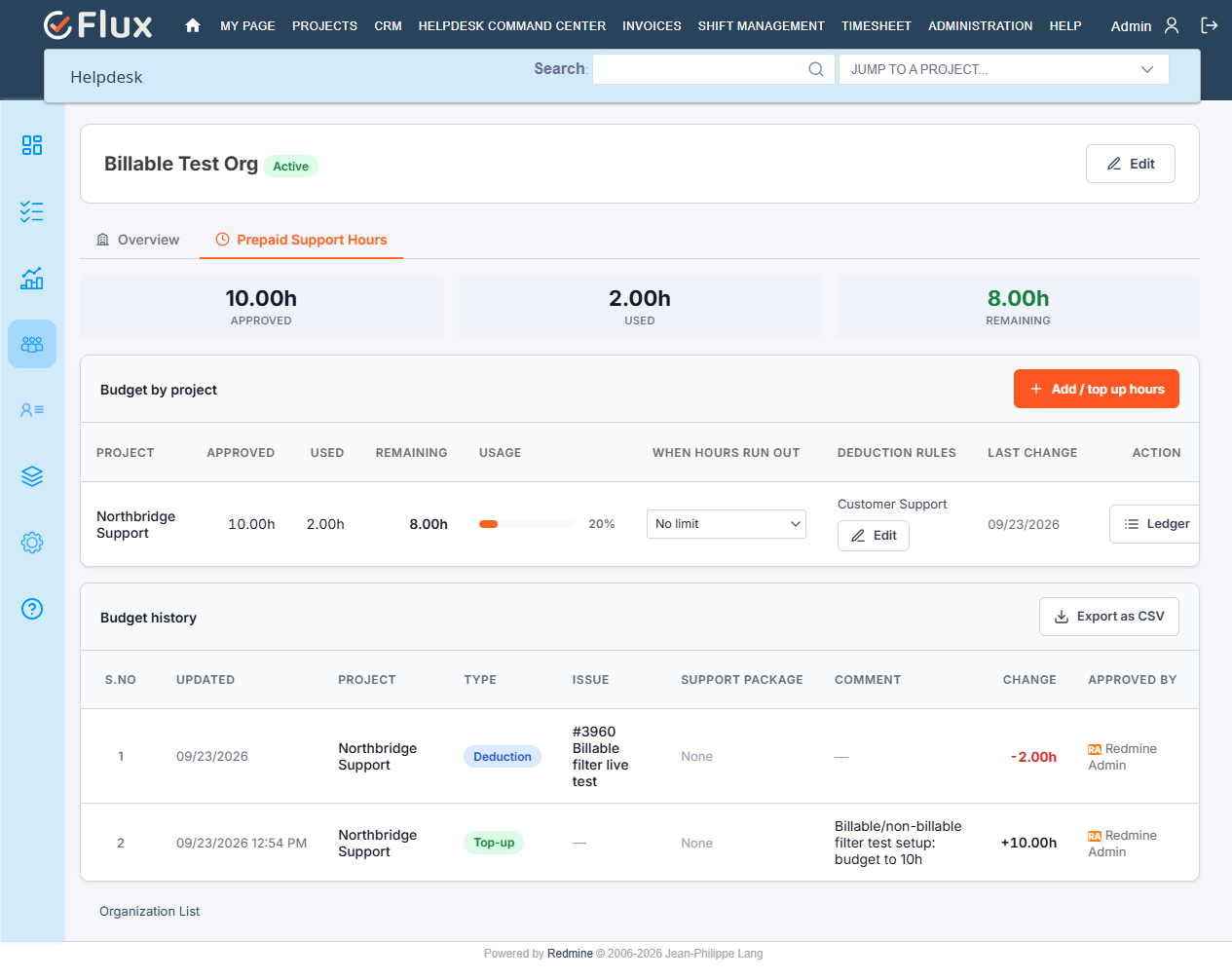
For customers who buy a block of support time up front. A budget belongs to one organization on one project, and every change to it — top-ups, reductions, and the time drawn against it — is kept as a permanent audit record.
Note: setting or adjusting a budget, and choosing what happens when hours run out, requires the manage_prepaid_support_hours permission.
How to Set a Budget
- Go to Helpdesk Command Center → Organization, and open the customer’s organization.
- Open the Prepaid Support Hours tab.
- Click Add / top up hours, choose the project, and enter the hours. A positive number adds to the budget; a negative number reduces it. Every entry requires a comment, which is what makes it an audit trail.
| Figure | Meaning |
|---|---|
| Approved | Total hours purchased so far |
| Used | Time logged against the customer’s tickets |
| Remaining | Approved minus Used |
The Ledger lists every time entry that drew against the budget, oldest first, with the running balance after each. The Budget history table above it merges every top-up, reduction, and deduction across every project the organization holds a budget on into a single timeline. Both can be exported as CSV.
What Happens When Hours Run Out
Set per customer, per project, from the same organization page:
| Mode | Effect |
|---|---|
| No limit (default) | The balance is simply allowed to go negative |
| Hard | Once the balance reaches zero, the customer cannot raise a new ticket, and no more time can be logged against their tickets |
| Soft | Both remain allowed, with no limit on how negative the balance goes |
All three modes still allow replies on tickets already open — running out of hours stops new billable work, not a conversation already under way.
Billable Activities and Minimum Time per Ticket
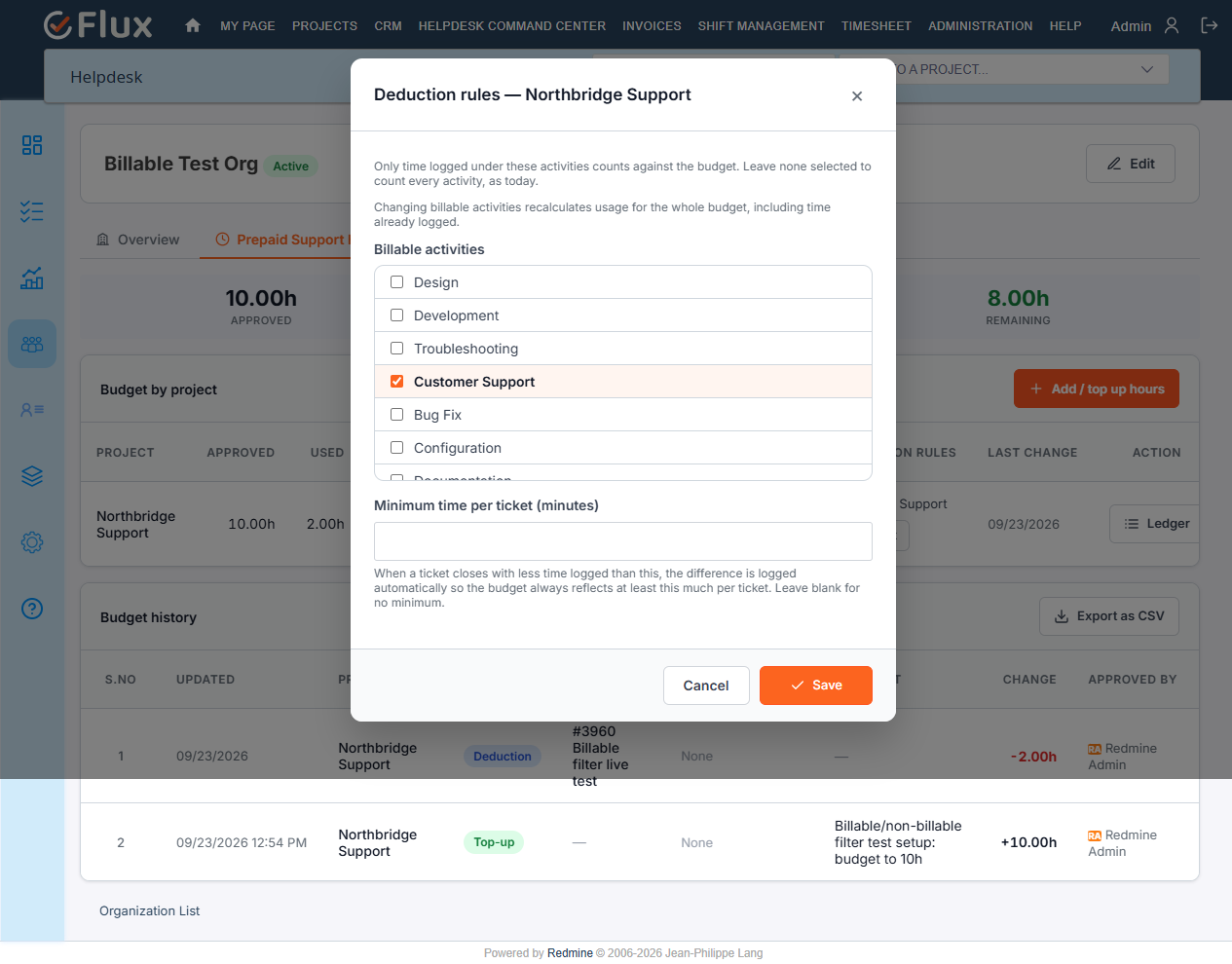
By default, every hour logged against a customer’s tickets draws down their budget, regardless of which Activity the agent selected. A pair can instead be restricted to a specific set of billable activities, and given a minimum charge per ticket:
- On the organization’s Prepaid Support Hours tab, find the project’s row in Budget by project.
- Click Configure (or Edit, once a rule already exists) in the Deduction rules column.
- Tick which activities should count against the budget. Time logged under any other activity is still recorded normally on the ticket — it just doesn’t reduce the customer’s balance.
- Optionally enter a minimum charge, in minutes, for every qualifying ticket.
- Click Save.
Once a restriction is set, the reply box’s Activity list marks each billable activity with a small dot right next to its name, so an agent can see at a glance which choice actually draws against the customer’s hours — a legend under the field confirms what the dot means.
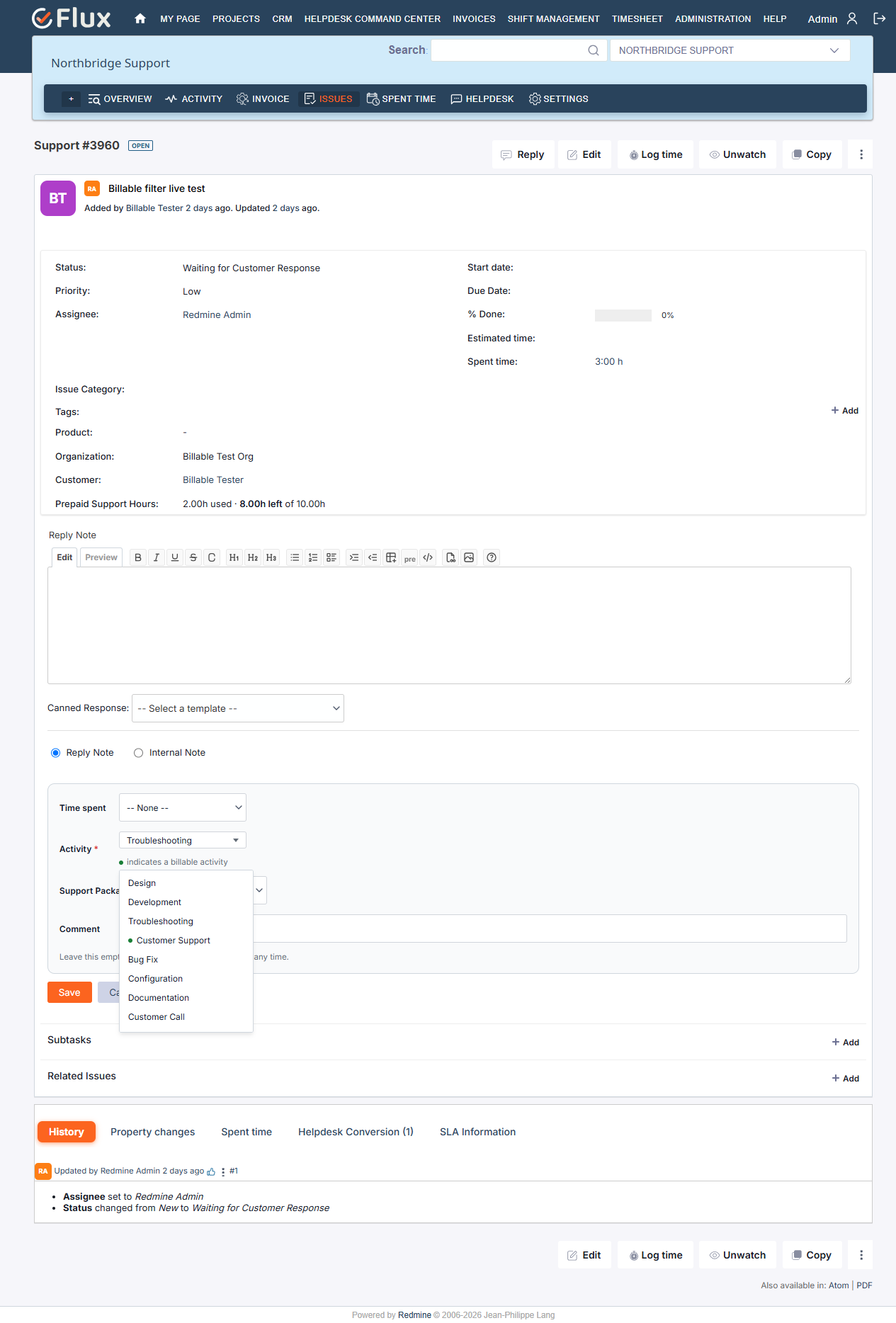
The minimum charge works in two parts:
- When the reply form is opened on a qualifying ticket, the Time spent field starts pre-filled with the minimum. It’s a starting value only — the agent can increase it, reduce it, or clear it before saving.
- If a qualifying ticket is closed with no billable time logged at all, the minimum is charged automatically as a real time entry, attributed to the closing agent. Reopening and closing the same ticket again does not charge it a second time.
Closing several qualifying tickets at once through a bulk status change applies the minimum to each one with no billable time, and the confirmation message states how many charges were applied and their total.
Important: changing the billable-activity selection recalculates Used for the whole budget, including time already logged, not only time logged afterward. The Ledger states which rule was in effect when its figures were computed, so a customer’s dispute over a recomputed balance can always be explained.
Customers
How to Register a New Customer
Customers are registered from the Helpdesk Command Center, and linked to whichever projects they need access to right on the same form.
- Go to the top menu and click Helpdesk Command Center.
- In the left sidebar, click Customers.
- Click the New Customer button.
- Enter Login, First Name, Last Name, and Email.
- Either tick Generate password to have one created and emailed to the customer automatically, or enter a Password and confirmation yourself.
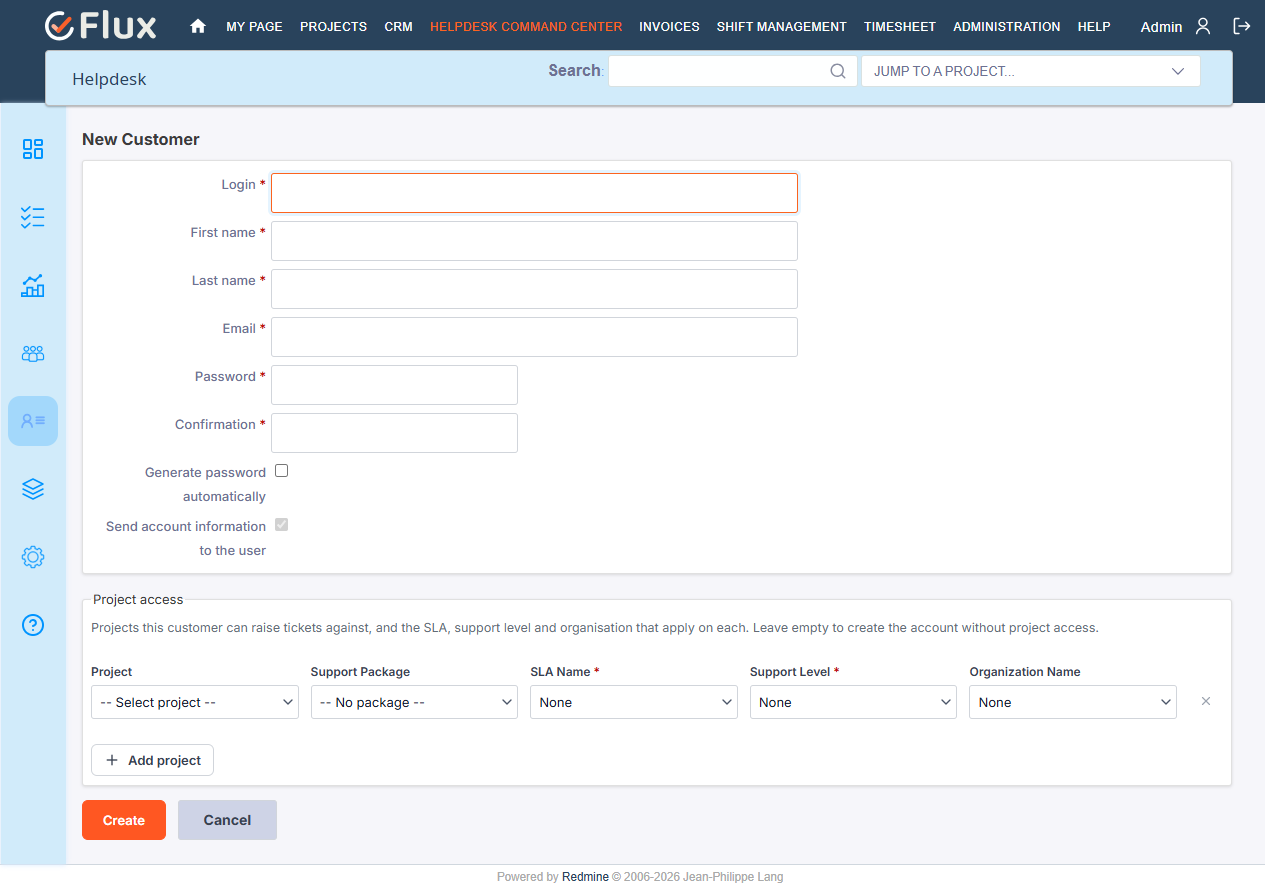
How to Link a Customer to Projects
Project access is granted from the customer’s own record, not from the project’s settings — one customer can be linked to several projects, each with its own SLA and support level.
- On the customer’s New or Edit form, scroll to the Project access section — a new customer’s form already includes one empty row.
- For that row, choose the Project.
- Optionally select a Support Package — its SLA and default Support Level copy onto this row automatically and lock, saving the next two steps. See How to Create a Support Package and Link It to an SLA under Helpdesk Settings.
- Otherwise, choose the SLA Name and the Support Level directly, and optionally the Organization Name the customer belongs to.
- Click Add project to add another row for a second project, or Delete to remove a row.
- Click Create (or Save, when editing).
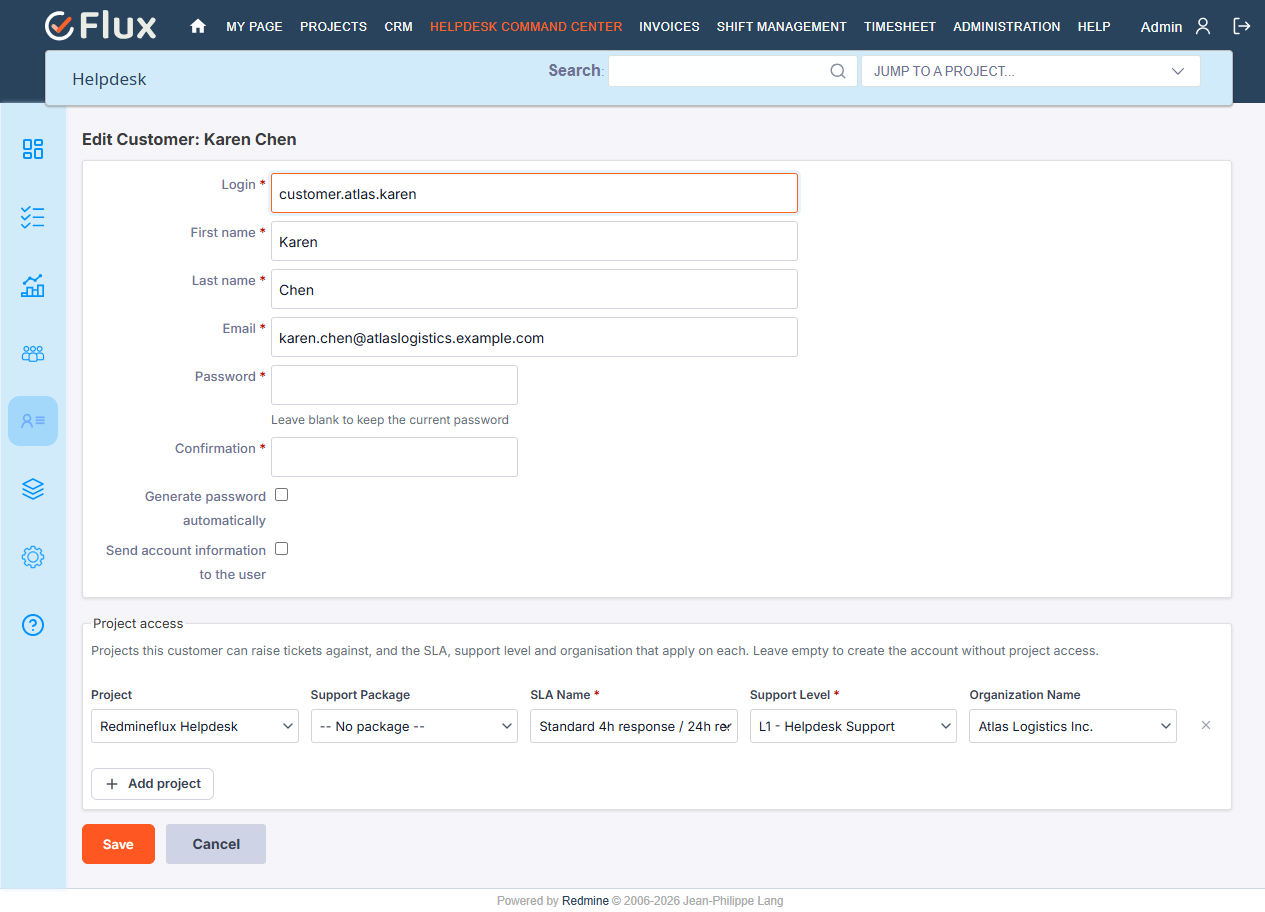
The resulting SLA, organization, and support level are what govern how this customer’s tickets are handled on each project — a customer with no SLA on a project gets no SLA at all for tickets raised there, since there’s no automatic fallback for customer-raised tickets, by design.
To change a customer’s access later, or remove them from a project, open the customer’s record, edit or remove the corresponding row under Project Access, and save.
Products
Products classify support tickets by which product or offering they’re about. Each product is scoped to a single project.
How to Create a Product
- Go to the top menu and click Helpdesk Command Center (or, from within a project, its own Helpdesk → Settings → Products tab).
- In the left sidebar, click Products.
- Click the New Product button.
- Fill in the details:
- Name — required, unique within the project
- Code — required, automatically uppercased, unique within the project
- Category — optional grouping label
- Description — optional
- Project — required
- Active — must be checked for the product to appear on ticket forms
- Click Save.
A product cannot be deleted while it’s linked to one or more tickets — deactivate it instead. Products are project-scoped: the same product name/code can exist independently in different projects, but cannot be shared or reused across them.
How to Assign a Product to a Ticket
- Open a helpdesk ticket, or create a new one.
- In the ticket form, locate the Product field — only active products for the current project are listed.
- Select the relevant product and save.
Each ticket can have one product assigned at a time. To remove the assignment, select the blank option from the dropdown.
Helpdesk Settings
Instance-wide configuration reachable from Helpdesk Command Center → Settings: holidays, canned response templates, Global SLAs, and Support Packages. (Email Configuration is also one of this screen’s tabs — see Email Configuration under Configuration above, since it’s a mandatory setup step.)
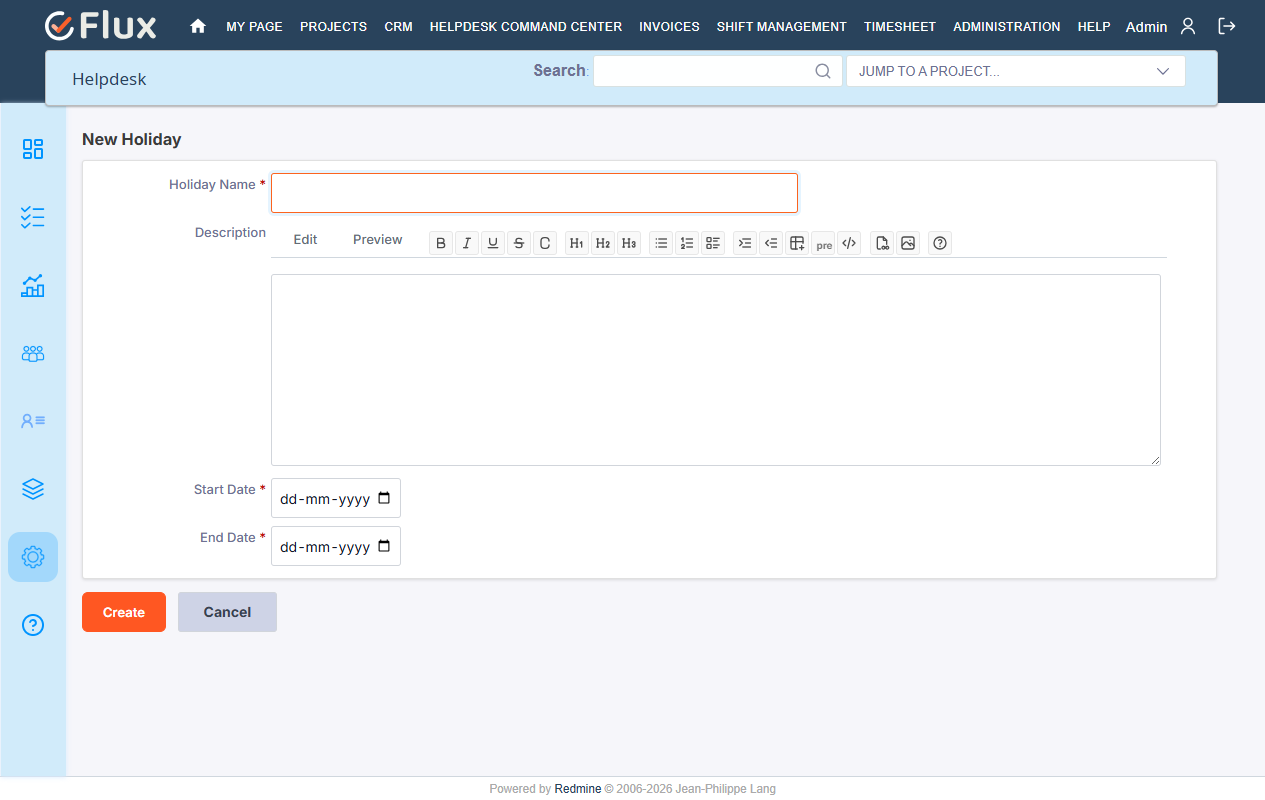
How to Create a Holiday
Holidays are configured instance-wide and then attached to whichever SLAs should observe them — the same holiday can be reused across many SLAs.
- Go to the top menu and click Helpdesk Command Center.
- In the left sidebar, click Settings, then open the Holidays tab.
- Click the New Holiday button.
- Enter Holiday Name, Start Date, End Date, and an optional Description. Start and end date can be the same day, or a range for multi-day holidays.
- Click Save.
A holiday on its own excludes nothing — it only takes effect once selected in an SLA’s own Holidays field (see Helpdesk SLA above), and only for SLAs that also have Working Hours configured. An SLA with no working-hours window ignores holidays entirely and calculates deadlines as a plain time addition.
How to Create Canned Responses
Canned responses are quick pre-written reply templates used by support agents, so common answers don’t need to be typed out every time. See How to Use Canned Responses under Helpdesk Tickets for inserting one into a reply.
- Go to the top menu and click Helpdesk Command Center.
- In the left sidebar, click Settings, then open the Canned Responses tab.
- Click the New Canned Response button.
- Enter a Name and the Content. Placeholders can be inserted using double curly braces, e.g.
{{ticket_subject}}— see the table below for the full list. - Click Save.
| Placeholder | Resolves to |
|---|---|
{{customer_name}} | The customer’s name |
{{customer_email}} | The customer’s email address |
{{ticket_id}} | #1042 |
{{ticket_subject}} | The ticket’s subject |
{{project_name}} | The project’s name |
{{assignee_name}} | Who the ticket is assigned to |
{{current_user}} | The agent inserting the response |
{{current_date}} | Today’s date |
{{current_time}} | The current time |
A good starting set: Acknowledge receipt, Request more information, Resolution confirmation, Closure with survey link. Deactivate a template rather than deleting it, so it stops appearing in the list while its history is retained.
How to Create a Global SLA
An SLA created from a project’s own Helpdesk SLA tab belongs to that project only. A Global SLA — an SLA with no project of its own — is a separate kind, needed only so a Support Package can guarantee the same response/resolution promise on every project it is sold on.
- Go to the top menu and click Helpdesk Command Center.
- In the left sidebar, click Settings, then open the Global SLAs tab.
- Click the New Global SLA button.
- Fill in the same fields as a normal SLA — Name, First Response Time, Resolution Time, Working Hours, Working Days, and Holidays.
- Click Save.
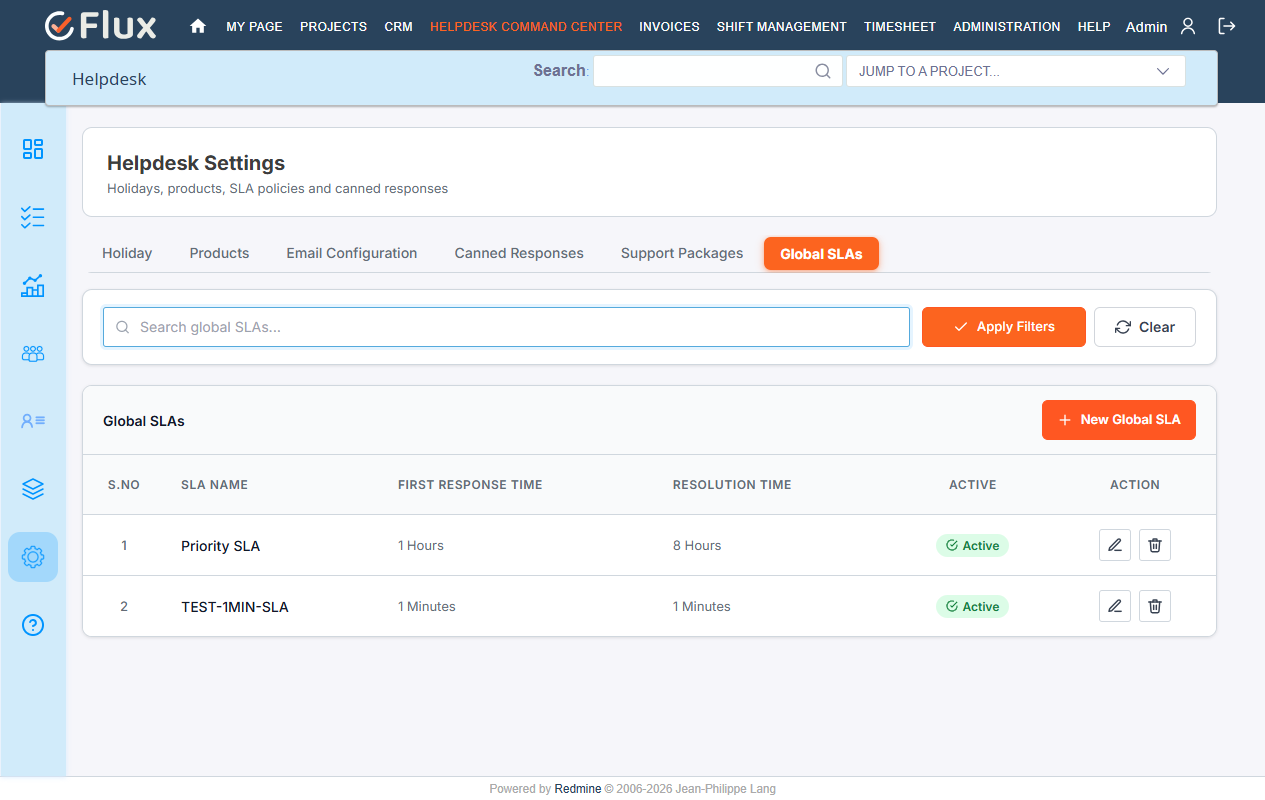
A Global SLA never appears on any project’s own SLA tab, and a project’s own SLA never appears in the Global SLAs list — the two are kept deliberately separate. Only a Global SLA can be selected as the SLA a Support Package guarantees.
How to Create a Support Package and Link It to an SLA
A Support Package (Basic Support, Standard Support, Premium Support, or whatever tiers a desk actually sells) can guarantee an SLA and a default Support Level. Assigning the package to a customer is what gives them that SLA — instead of an admin hand-picking matching values on every project access row.
- Create the Global SLA the package should guarantee, if one does not already exist.
- Go to the top menu and click Helpdesk Command Center.
- In the left sidebar, click Settings, then open the Support Packages tab.
- Click New Support Package (or Edit on an existing one).
- Enter a Name and optional Description.
- Select the SLA — only Global SLAs are offered. This is required once the package is Active.
- Optionally select a Default Support Level. Leave it blank to defer to the customer’s project instead of forcing one.
- Click Save.
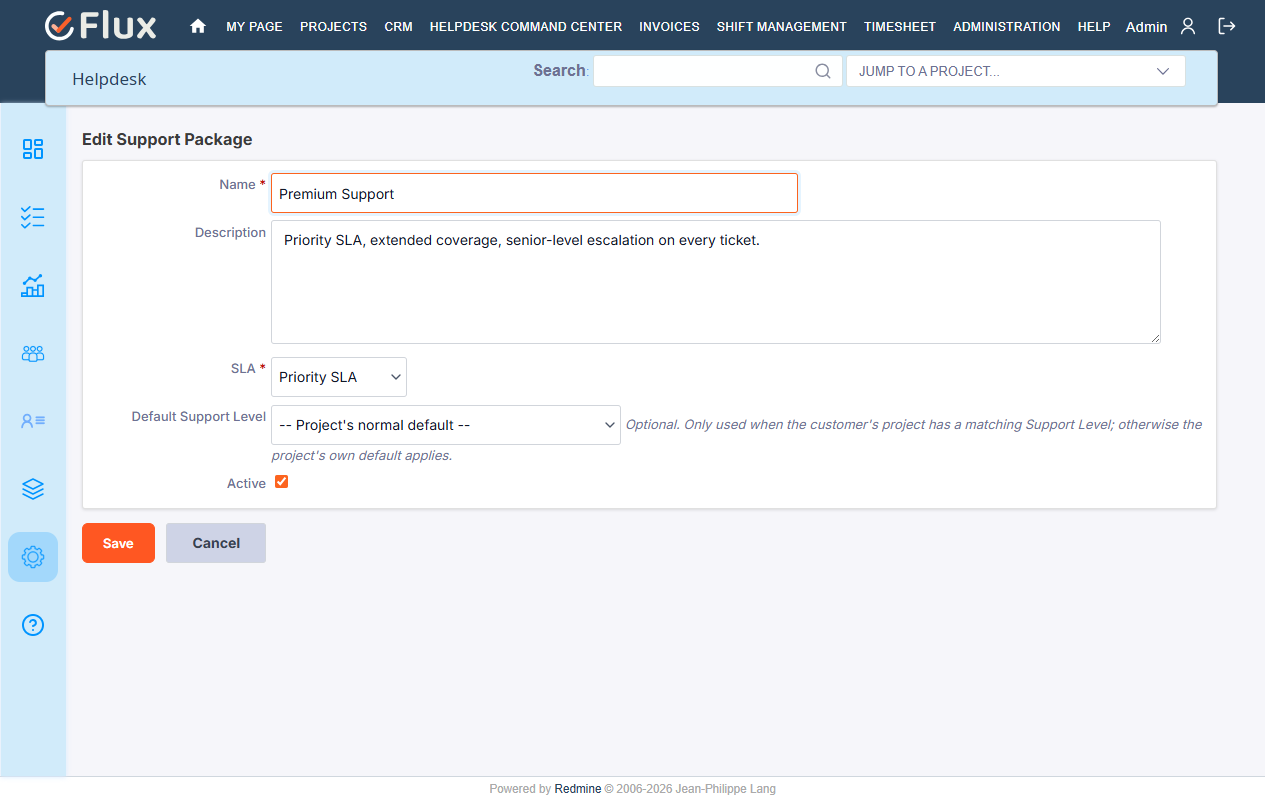
An active package cannot be saved without an SLA. If any active packages are missing one, a banner on the Support Packages tab lists them by name.
Assigning a Package to a Customer
On a customer’s Project Access row (see Customers above), a Support Package selector sits alongside the SLA and Support Level fields.
- Open the customer and select a Project Access row, or add a new one.
- Select a Support Package. Its SLA and default Support Level are copied onto the row immediately, and both fields lock.
- If this one customer needs a negotiated exception, click Override with a different SLA/level — the fields unlock for a manual pick, and the row is marked as overriding the package.
- Save the customer.
Removing the package from a row leaves the SLA and Support Level exactly as they were — only the link to the package clears, so a customer’s ticket behavior never changes silently.
Note: a ticket whose SLA has already started (the moment it was first assigned) never changes, no matter what happens afterward to its customer’s package or row — the same rule described under How Support Level Escalation Works. Only a ticket created but not yet assigned picks up a later change.
Changing a Package’s SLA Later
Editing an SLA or Support Level on a package that is already assigned to customers opens a confirmation popup:
- Apply to N customer(s) — sweeps the new SLA/level onto every customer on the package who has not been individually overridden.
- Save without applying — keeps every existing customer exactly as they are; only future assignments get the new values.
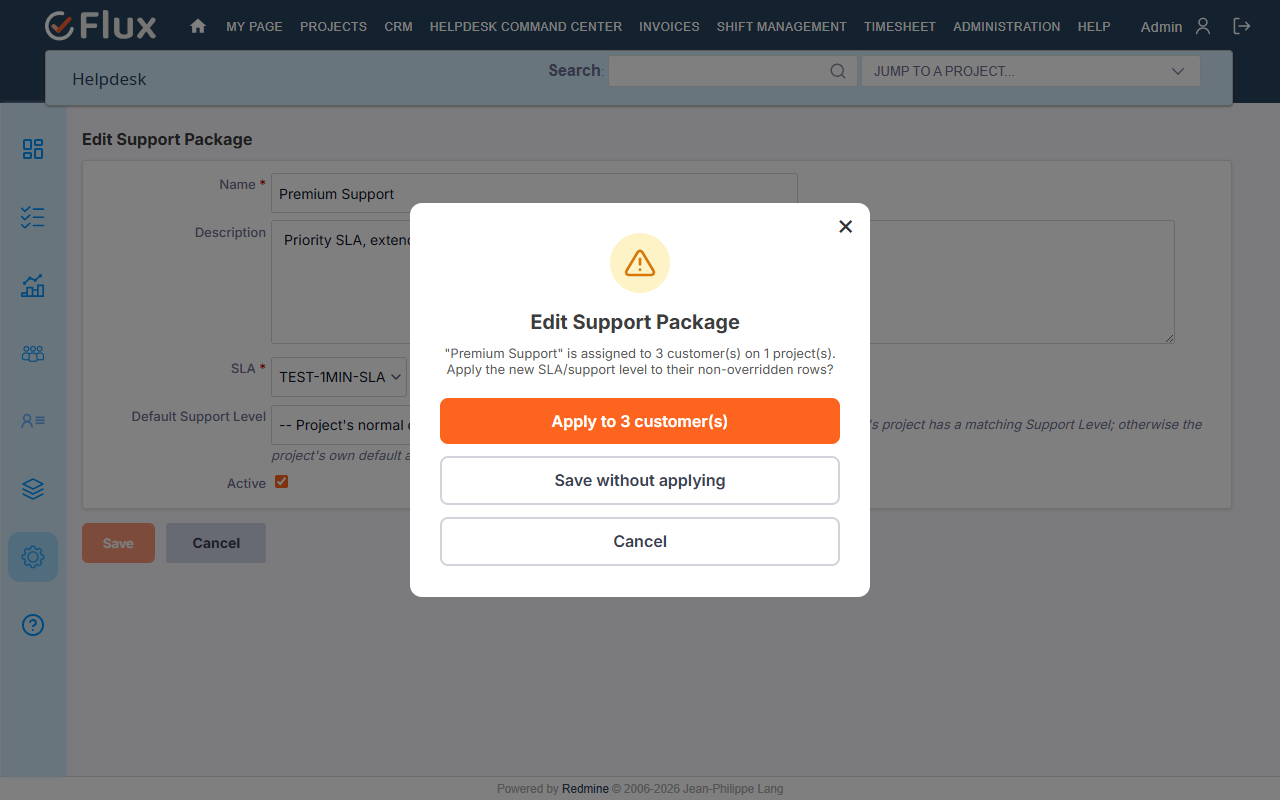
Every assignment, override, removal, and sweep is written to a permanent record, so a customer’s dispute over a changed SLA can always be traced back to who changed what and when.
Customer Portal (My Helpdesk)
The Customer Portal is a dedicated interface for helpdesk customers. When a registered customer logs in, they see a simplified My Helpdesk view instead of the full agent dashboard — their own tickets, the ability to submit new ones, and reply to ongoing conversations, with no access to internal or administrative features.
How the Customer Portal Differs from the Agent View
| Feature | Agent / Admin | Customer |
|---|---|---|
| Top menu label | Helpdesk Command Center | My Helpdesk |
| Tickets visible | All tickets across projects | Only their own tickets |
| Internal notes visible | Yes | No |
| Email Configuration | Yes | No |
| SLA details & escalation paths | Yes | No |
| Canned responses library | Yes | No |
| Organization / Support Level management | Yes | No |
| Customer management | Yes | No |
| Reports & analytics | Yes | No |
| Create new ticket | Yes | Yes |
| Reply to own ticket | Yes | Yes |
How a Customer Accesses and Uses the Portal
- The customer logs in with the account created for them (see Customers above).
- In the top navigation, they click My Helpdesk.
- The customer dashboard shows the projects they have access to; clicking one shows their tickets on that project, with columns for Ticket ID, Subject, Status, Priority, and Last Updated.
- To create a ticket: click New Ticket, fill in Subject, Description, and Priority, optionally attach files, and click Create.
- To reply: open a ticket, scroll to the reply area, write a response, and click Save. The assigned agent is notified by email, and the SLA clock resumes automatically if the ticket was Waiting for Customer Response.
Note: Customers never see Internal Notes — only public replies appear in their view. Customers can only access projects they’ve been explicitly linked to.
REST API
A JSON REST API covers most of what the Helpdesk plugin manages — tickets (including merge, conversations, email history, and SLA status), organizations and customers (including a customer’s support-package assignment), prepaid support hours, SLAs (a global SLA is simply a row on this same endpoint with no project, not a separate resource), support levels, support packages (with an SLA/support-level linkage and an optional propagation sweep), products, holidays, canned responses, and SLA analytics — for building integrations separately from the web UI.
Requests are authenticated with an X-Redmine-API-Key header, the same key every Redmine account already has. Every endpoint and its parameters are documented interactively at /helpdesk/swagger, restricted to administrators.
Troubleshooting
- Emails are not creating tickets
- Check IMAP settings (server, port, username/password).
- Make sure the mailbox is accessible and not blocked by a firewall.
- Confirm the Sidekiq email-checker job is running — it polls mailboxes every 5 minutes; without Sidekiq running, nothing gets checked.
- Confirm the sender is a registered customer linked to the project.
- Outgoing emails are not being sent
- Validate the SMTP server, port, and authentication type.
- Confirm the SMTP username/password is correct.
- SLA is not triggering or calculating incorrectly
- Verify the SLA is marked Active.
- Check that the ticket has an assignee — the SLA timer starts only on first assignment.
- Confirm Working Hours, Working Days, and Holidays are configured as intended (an SLA with no working hours ignores both working days and holidays entirely).
- Confirm the Sidekiq SLA-monitor job is running — without it, no escalations or breach checks fire.
- Helpdesk tab not visible in a project
- Confirm the Helpdesk module is enabled under Project Settings → Modules.
- Confirm your role has the
view_helpdeskpermission.
- Organization or Customer not showing in a dropdown
- Confirm the organization/customer is marked Active.
- Confirm the customer has Project Access linked to that project.
- Waiting for Customer status is not being set automatically
- Confirm the reply was submitted with Reply Note selected, not Internal Note, and via the ticket’s Reply button rather than a plain Redmine note.
- Verify the Waiting for Customer Response status exists under Administration → Issue Statuses and is part of the Support tracker’s workflow.
- SLA escalation emails are not being sent
- Verify outgoing email is configured and working.
- Confirm the Sidekiq SLA-monitor job is running.
- Confirm the escalated ticket has an available assignee at the next support level — with none available, there’s no one to notify.
- Reports are showing no data
- Verify the selected date range actually covers ticket activity.
- Confirm your account has Admin, or the global
manage_helpdeskorexport_helpdesk_reportspermission.
- Customer cannot see a Knowledgebase article
- Confirm the article has been published at least once — an article that was only ever saved as a draft is never visible to customers.
- Confirm the customer has Project Access to that project.
- Customer cannot log in to the portal
- Verify the account exists and is active under Administration → Users.
- Confirm the account was created through Customer Management (with the customer flag set), not as a regular Redmine account.
- Internal notes are visible to the customer
- Verify the note was saved with Internal Note selected, not Reply Note.
- Replies received via email are always treated as public — internal notes can only be created through the web UI.
- Check that the customer’s role does not hold the core View private notes permission.
- A Support Package’s SLA dropdown is empty
- It only offers Global SLAs — create one first at Helpdesk Settings → Global SLAs.
- A project-scoped SLA (created from inside a project) never appears here, by design.
- A customer’s SLA didn’t change after editing their Support Package
- Check whether that customer’s row is flagged as overriding the package — an overridden row is skipped by every future package change until the override is removed.
- If the package’s SLA was edited and the confirmation popup was answered Save without applying, only future assignments get the new SLA — existing customers keep what they had.
Frequently Asked Questions (FAQs)
Q1. Who can access the Helpdesk?
A1: Administrators, and any account holding the view_helpdesk permission (agents), can access it. Customers see the separate “My Helpdesk” portal instead.
Q2. How does SLA get applied to a ticket?
A2: The SLA is the one linked to the customer’s Project Access record for that project. The timer starts the moment the ticket gets its first assignee.
Q3. Can customers create tickets without logging in?
A3: Yes, by email, once incoming email is configured for the project and the sender is a registered customer.
Q4. How do escalations work?
A4: Automatically, via a background job that checks SLA deadlines every two minutes. A breach escalates the ticket from L1 → L2 → L3 (or however many tiers are configured); a breach at the last tier reassigns the ticket to the instance administrator instead.
Q5. Does the Helpdesk plugin support multiple languages?
The plugin interface follows Redmine’s own locale setting — switching Redmine’s language changes the Helpdesk interface too.
Q6. Can I assign multiple agents to a single helpdesk ticket?
No. Each ticket has one assigned agent at a time, the same as any Redmine issue. Multiple agents can still collaborate using Internal Notes without the customer seeing the discussion.
Q7. Can customers reply to tickets via email?
Yes. Replying to the notification email adds the reply to the ticket as a public note, and resumes the SLA clock if the ticket was Waiting for Customer Response.
Q8. How do I prevent the SLA from counting time outside business hours?
Configure Working Hours and Working Days on the SLA. Attach a Holiday to exclude specific dates as well — holidays only take effect on SLAs that also have Working Hours set.
Q9. Can I export Knowledgebase articles?
Yes, as a PDF, from the article view’s Export icon.
Q10. Is there a way to see which agent is performing best?
Yes — the Agent Performance report shows resolved tickets, average response/resolution time, breach rate, and escalation count per agent, filterable by date range.
Q11. Can the same product be used across multiple projects?
No. Products are scoped to a single project; create the same product separately in each project that needs it.
Q12. Can a customer’s budget be restricted to certain kinds of work?
Yes — see Prepaid Support Hours, under Organization. A budget can be limited to specific billable activities, and a minimum charge per ticket can be set, which is applied automatically if a ticket closes with no time logged.
Q13. Does a Support Package keep a customer’s SLA up to date automatically?
Only at the moment you assign it — the package’s SLA and support level are copied onto the customer’s row once, not linked live. Editing the package’s SLA later only reaches customers already on it if you answer Apply to N customer(s) on the confirmation popup; otherwise it only affects new assignments. See How to Create a Support Package and Link It to an SLA.
Q14. Why can’t I pick a project’s own SLA on a Support Package?
A package can be sold on any project, so its SLA has to work everywhere — only a Global SLA (one with no project of its own) qualifies. Create one at Helpdesk Settings → Global SLAs.
Conclusion
The Redmineflux Helpdesk Plugin provides a complete, customizable solution for managing customer support within Redmine. With SLA tracking and automatic escalation, Support Packages that guarantee a real SLA and support level, Waiting for Customer status with SLA pause/resume, email-to-ticket automation, prepaid support hours with billable-activity rules, comprehensive analytics reports, a rich Knowledgebase, a dedicated Customer Portal, internal notes for agent collaboration, organizations, customers, canned responses, products, and multi-level support tiers, your support team can work efficiently and professionally.