Redmine MCP Server: Connect AI Assistants Directly to Redmine
Connect Claude, ChatGPT, and Copilot to Redmine with the Redmine MCP Server — query issues, log time, and update data in natural language.
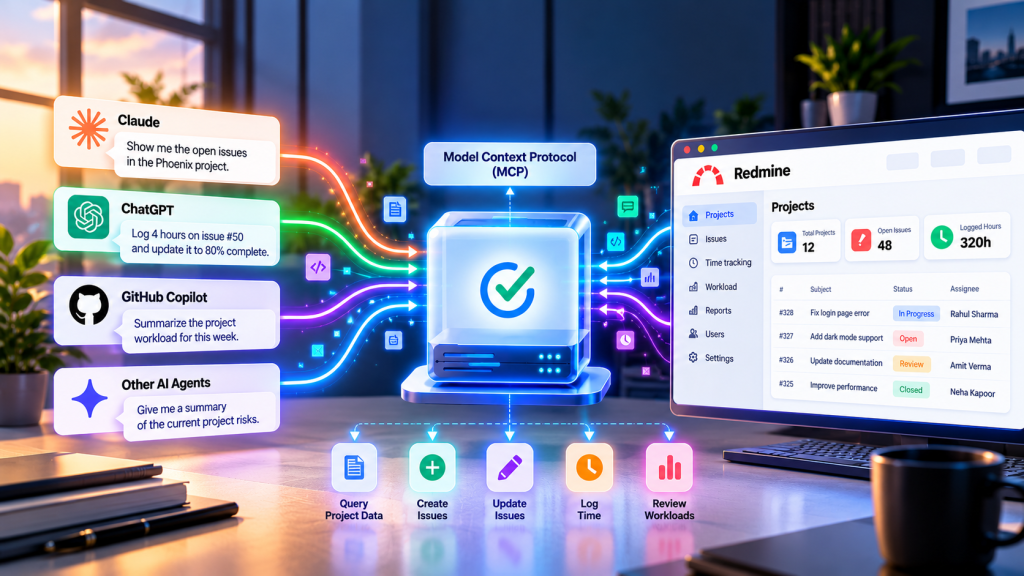
AI assistants are most useful when they can access data your team already works with. For Redmine teams, that means project status, issues, time tracking, and workloads. The Redmineflux MCP Server connects Claude, ChatGPT, GitHub Copilot, and other MCP-compatible agents directly to Redmine. As a result, your AI assistant interacts with Redmine through the Model Context Protocol, and teams can query project data, create issues, update issues, log time, and review workloads using natural language. Available capabilities depend on which Redmineflux plugins you install in your environment.
What Does the Redmineflux MCP Server Do?
The Redmineflux MCP Server connects AI assistants directly to Redmine through the Model Context Protocol. Compatible AI agents can query project data, update issues, and log time. Instead of manual navigation, they connect to Redmine through natural language. As a result, teams get Redmine answers through the AI tools they already use, without exports or extra steps.
For example, your team could ask:
- “What issues are currently blocked in the Phoenix project?”
- “Show me the workload for the engineering team this week.”
- “Which issues were updated yesterday?”
- “Log 4 hours against issue #50.”
- “Update issue #50 to 80% complete.”
- “Give me a summary of the current project risks.”
The MCP server translates each AI request into supported tool calls, then returns the relevant result to your AI assistant as a natural-language response.
How the Model Context Protocol Works
Anthropic developed the Model Context Protocol (MCP) as an open standard that provides a common interface for connecting AI applications to external tools and data. Without MCP, an AI assistant only knows what you paste into the conversation. Instead, MCP replaces that limitation with a live, structured connection to your Redmine environment.
A simplified Redmine MCP workflow looks like this:
User → AI Assistant → MCP Server → Redmine → MCP Server → AI Assistant → User
Step by step:
- A team member asks an AI assistant about project status.
- The AI determines which Redmine tool or capability is needed.
- The MCP server sends the appropriate request to Redmine.
- Redmine returns the relevant information.
- The AI assistant presents the result as a natural-language response.
Write actions such as updating an issue or logging time follow the same path. However, authentication and permissions apply to all write operations.
What Can the Redmine MCP Server Actually Do?
The Redmineflux MCP Server supports both data retrieval and write actions it does far more than handle read-only queries.
Query Redmine data:
- Search and list issues
- Review project information
- Check workloads
- Analyse time tracking data
- Query information across projects
- Generate project summaries
Perform supported Redmine actions:
- Create issues
- Update issues
- Log time
- Change supported issue fields
- Perform other available Redmine actions
For example: “Log 4 hours on issue #50 and mark it 80% complete.” The MCP server processes the tool calls, checks permissions, and then records the interaction in the audit log. In other words, MCP gives your AI assistant a direct interface for working with Redmine, not just answering questions about it.
Does AI Get Unrestricted Access to Redmine?
No connecting an AI assistant to Redmine does not give it unlimited system access. Instead, access depends on the authentication, permissions, tools, and capabilities available to the connected MCP server.
The Redmineflux MCP server checks permissions on every request and records all tool calls. In addition, AI applications may require confirmation for write or modify actions, depending on the connected AI platform. For example, ChatGPT’s MCP implementation can request confirmation before important write actions.
Think of it this way: the AI can only use the capabilities you make available. Redmineflux never grants unrestricted access to the entire installation by default.
Connect your AI assistant to Redmine in minutes — no server to set up. Try Redmineflux Cloud Pro →
Which AI Assistants Work With the Redmineflux MCP Server?
Redmineflux MCP works with AI agents that support the Model Context Protocol. Currently verified compatible assistants include:
- Claude Desktop — via the mcp-remote connector (Claude Desktop’s current method for connecting to remote MCP servers)
- Claude Code — via the Claude Code MCP server list
- ChatGPT (with MCP enabled) — via a custom MCP app or connection
- GitHub Copilot — MCP-enabled workspace configuration
- Custom AI agents built using MCP frameworks
The server works with any MCP-compatible AI agent any assistant that adopts the MCP standard connects without a separate integration build.
A note on ChatGPT: ChatGPT supports MCP connections on Pro, Business, Enterprise, and Edu plans, but the free plan does not support MCP at this time. Refer to this as “ChatGPT with MCP enabled” rather than a “ChatGPT plugin,” since ChatGPT is still rolling out full write and modify support for supported workspace plans.
Redmine MCP Server vs. Redmine REST API
MCP and the Redmine REST API solve different integration problems, so they are not competitors.
| Redmine REST API | Redmine MCP Server | |
|---|---|---|
| Designed for | Programmatic integrations | AI-assisted interaction |
| How it works | Applications send API requests | AI agents use MCP tools |
| Who builds it | Developers write the integration | AI interacts through natural language |
| Best for | Custom applications and scripts | AI workflows and natural-language queries |
| Automation | Possible | AI-assisted automation possible |
That said, the REST API remains valuable for traditional software integrations and custom automation. MCP, meanwhile, adds an AI-native layer that lets compatible AI agents interact with the capabilities Redmine exposes. As a result, for most Redmine teams, the REST API and MCP work alongside each other.
Open-Source Redmine MCP vs. Redmineflux MCP
Community developers have built open-source Redmine MCP servers for teams who prefer to self-host everything. However, Redmineflux MCP differs from these community builds in scope, maintenance, and plugin support.
| Open-Source Redmine MCP | Redmineflux MCP Server | |
|---|---|---|
| Purpose | Community-contributed MCP adapters | Purpose-built for Redmineflux installations |
| Plugin support | Basic Redmine API coverage only | Plugin-aware — detects installed Redmineflux plugins |
| Audit logging | Usually not included | JSON Lines audit log included |
| Maintenance | Self-maintained | Maintained by the Redmineflux team |
| Cloud option | Self-hosted only | Available via Cloud Pro — no additional setup |
| Write support | Varies by implementation | Create issues, update issues, log time |
| Authentication | Depends on implementation | Permission-checked, tied to your Redmine account |
| Getting started | Requires technical setup | Integrated with Cloud Pro — no server setup required |
For teams on Redmineflux Cloud Pro, the Redmineflux MCP Server requires no additional server setup.
Every AI action permission-checked and logged. See it on your data. Get a Free Demo →
Which Redmineflux Plugins Work With MCP?
Redmineflux MCP uses a plugin-aware capability model. Specifically, the MCP server detects which Redmineflux plugins you have installed and exposes only the tools those plugins support. If you haven’t installed a plugin, Redmineflux doesn’t expose its capabilities to the AI agent.
CRM Plugin — Fully MCP-Compatible
The CRM Plugin has full MCP support. Your AI assistant can access contact records, deal pipeline data, and activity history directly. Just like every other supported plugin, MCP queries from the CRM Plugin work through any MCP-compatible AI assistant. See the CRM Plugin →
Timesheet Plugin — Fully MCP-Compatible
The Timesheet Plugin is fully MCP-compatible, so teams can query logged hours, review timesheet approval status, and manage submission workflows directly through their AI assistant.
Workload Plugin — Fully MCP-Compatible
The Workload Plugin is fully MCP-compatible as well, so teams can query capacity data, review allocations and leave schedules, and identify overloaded team members directly through their AI assistant.
The Redmineflux team is adding more plugin capabilities to the MCP Server over time. For the current list of supported plugin integrations.
What Is Capability Injection?
When an AI assistant connects to the Redmineflux MCP Server, it does not receive every possible Redmine capability. Instead, the server first checks which Redmineflux plugins you have installed and active, and those installed plugins determine which tools the AI agent can use. In other words, capability injection means the AI only sees tools your Redmine installation actually supports.
If you install the CRM Plugin, the AI agent can access contact and deal data. If you haven’t installed the Timesheet Plugin, however, the AI agent has no access to timesheet tools. This approach prevents the AI from attempting actions that would fail or produce errors, so every team’s AI interface reflects their actual Redmineflux plugin configuration.
What Can Your Team Do With the MCP Server Today?
The real value of MCP comes from reducing the time between asking a question and taking action.
Get project summaries
Instead of opening multiple Redmine pages, simply ask: “Summarise the Phoenix project and tell me what is currently at risk.” The AI then retrieves the relevant project information and presents it concisely.
Find blocked issues
For instance, ask: “Which issues are blocked across our active projects?” This, in turn, saves time during daily standups and project review meetings.
Review team workload
Ask: “Who is overloaded this week?” Here, the MCP server uses available workload capabilities to surface capacity problems before they escalate.
Update issues
Instead of opening an issue and changing fields manually, simply ask your AI assistant: “Update issue #125 to 80% complete and add a comment saying testing is in progress.” So, an authorised user can request the update directly through their AI assistant.
Log time
A team member could ask: “Log 4 hours on issue #50 for today’s work.” Where the capability and permissions allow it, the MCP server processes the time entry through Redmine.
Review AI activity
Redmineflux records each MCP tool call as a JSON Lines entry. Each record includes session ID, authenticated user, tool name, parameters, timing, and result status, and Redmineflux redacts all sensitive fields before storing the record.
Redmine MCP Server: Cloud vs. Self-Hosted
Redmineflux Cloud Pro
Redmineflux follows a path from individual plugins to Managed Cloud to AI-enabled workflows, and MCP sits as the AI layer at the top of that progression.
The Redmineflux MCP Server is currently available as part of Redmineflux Cloud Pro. Redmineflux manages the hosted MCP endpoint, so you need no separate MCP server installation or maintenance. As a result, this is the simplest option for teams that want to start using MCP without managing another server component.
Self-Hosted Redmine
Alternatively, the Redmineflux MCP Server is also available as a self-hosted package for teams running their own Redmine infrastructure no source code exposed, no Cloud Pro subscription required. Contact the Redmineflux team to get started.
How to Get Started With Redmineflux MCP
Step 1: Check your Redmineflux setup
Confirm that your Redmine environment and Redmineflux subscription support MCP. Every Redmineflux Cloud Pro subscription includes MCP support.
Step 2: Choose your AI assistant
Select a supported MCP-compatible AI agent. Options include Claude Desktop, Claude Code, ChatGPT with MCP enabled, and GitHub Copilot.
Step 3: Configure the MCP connection
Then connect the AI assistant to the Redmineflux MCP endpoint, using the authentication and configuration your AI platform requires.
Step 4: Test read operations first
Start with simple questions: “Show me the open issues in Project A.” This verifies that the connection and permissions are working correctly.
Step 5: Test supported write actions
Once you confirm read access, test write actions such as updating an issue or logging time. Be sure to verify the permissions and approval requirements of your AI platform before enabling write capabilities.
Step 6: Review audit activity
Use the available audit information to review which AI tools your team is calling. This shows which actions each user performs.
Frequently Asked Questions
What is a Redmine MCP Server?
A Redmine MCP Server connects Redmine with AI applications through the Model Context Protocol. It allows compatible AI agents to interact with supported Redmine data and capabilities through a standardised interface including project queries, issue updates, time logging, and workload reviews.
Which AI assistants work with Redmineflux MCP?
The Redmineflux team currently verifies Claude Desktop, Claude Code, ChatGPT with MCP enabled, GitHub Copilot, and custom MCP-based agents as compatible. In addition, any AI assistant that adopts the Model Context Protocol standard will also work.
Can the Redmineflux MCP Server modify Redmine data?
Yes. The current implementation supports write actions creating or updating issues, logging time, and changing supported issue fields — subject to authentication, permissions, and the capabilities available in your installation.
Is every Redmine feature automatically available through MCP?
No. The server uses a capability-based model and detects installed Redmineflux plugins. Your installation determines which capabilities the AI agent can access.
Is Redmineflux MCP available for self-hosted Redmine?
Yes. The Redmineflux MCP Server is also available as a self-hosted package for teams running their own Redmine infrastructure no source code exposed, no Cloud Pro subscription required.
Does MCP replace the Redmine REST API?
No. The REST API remains useful for traditional application integrations and custom automation. MCP provides an AI-friendly interface for compatible AI agents to interact with supported Redmine capabilities, so the two work alongside each other.
Are AI actions logged?
Yes. Redmineflux records MCP tool calls as JSON Lines containing session ID, authenticated user, tool name, parameters, timing, and result status, and redacts sensitive information. This provides an audit trail of AI interactions with Redmine.
Is MCP the same as the Redmine AI Assistant inside the product?
No. The external MCP connection and the in-product Redmine AI Assistant are separate experiences. Both use the same MCP server underneath but serve different interaction contexts.
Related: Crux, Redmineflux’s Native AI Agent Layer
MCP connects external AI tools Claude, ChatGPT, Copilot to your Redmine data. If you’d rather the AI live inside Redmine itself, that’s what Crux does instead: a chat assistant and specialist AI agents that work from inside the Redmineflux interface, with a person approving every change before it runs. The two are complementary: MCP brings Redmine into your existing AI tools, while Crux brings AI agents into Redmine.
Connect Your AI Assistant to Redmine
AI does not need to replace Redmine to make project management more productive. Instead, with MCP, the AI tools your team already uses can reach your existing Redmine data and workflows directly.
The Redmineflux MCP Server provides a structured connection between Redmine and compatible AI agents, including data retrieval, write actions, plugin-aware capabilities, permission checks, and audit logging. So, for teams already using AI assistants, this creates a practical path to bringing Redmine into everyday AI workflows.
Running your own Redmine? MCP works there too. Contact the Team →